The realm of digital art has been revolutionized by the advent of pen displays, allowing artists to draw directly onto their screen, bridging the gap between traditional and digital mediums. XP-Pen, a prominent player in this market, offers a range of devices catering to various needs and budgets. Among their offerings, the XP-Pen Artist Pro 16TP stands out as a compelling option, particularly for those seeking a high-resolution display with the added convenience of touch functionality. This review delves into the features, performance, and overall value of the Artist Pro 16TP, comparing it with its sibling, the XP-Pen Artist Pro 16, to help you make an informed decision.
Design and Build Quality
The XP-Pen Artist Pro 16TP immediately impresses with its premium design and robust build quality. Encased in a sleek, metallic exterior, it exudes a professional aesthetic. The device measures 16 x 10.35 x 0.60 inches (40.6 x 26.3 x 1.5 cm), offering a substantial yet manageable footprint. The build quality is described as great, with a sturdy feel that suggests durability. The pen case also complements this premium feel, featuring a metallic housing that clicks open satisfyingly to reveal the stylus and spare nibs. However, a minor point of consideration is the pen holder's design within the case; care must be taken when extracting the pen to avoid scratching it against the interior housing.
The XP-Pen Artist Pro 16, in contrast, shares a similar design philosophy, being described as having a nice, clean-looking work area and a metal casing. While it mirrors the XP-PEN Innovator 16 in design, its work area is slightly smaller at 15.4 inches compared to the Innovator 16's 15.6 inches. The Artist Pro 16 also features customisable dual dials and 8 shortcut buttons, which are well-dampened and offer a great tactile feel.
Display and Visuals
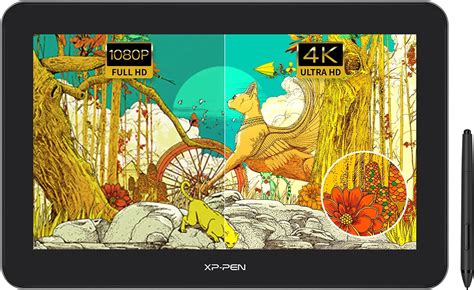
The most significant differentiator between the Artist Pro 16TP and the Artist Pro 16 lies in their display resolution and capabilities. The Artist Pro 16TP boasts a stunning 4K UHD display, offering a resolution of 3840 x 2160 pixels. This high resolution, combined with a 16-inch screen, ensures that all visuals appear exceptionally sharp. Older scans or low-resolution wallpapers, when scaled up on this display, may appear pixelated due to the sheer detail of the 4K resolution. For instance, an A4 canvas at 300 DPI has 3507 x 2480 pixels, which is comparable to the 4K UHD resolution. When using Windows with 200% scaling on the Artist Pro 16TP, the user interface (UI) effectively scales to a 1080p resolution on a 15.6-inch display, but without any pixelation, maintaining sharpness and detail. This provides a UI size that is comfortable for viewing, akin to a 1440p resolution on a 27-inch monitor, offering more desktop space than a 1080p UI even at 4K.
The color accuracy of the Artist Pro 16TP is also a strong point. Measurements indicate 98% sRGB, 84% NTSC, 90% AdobeRGB, and 87% P3 coverage, with a maximum brightness of 262 nits. These figures are considered good, and the colors often look accurate straight out of the box, potentially negating the need for immediate color calibration. The display is described as glossy, with a surface treated for smooth finger and palm gliding, which is beneficial for touch gestures. While a glossy surface can offer better image quality by avoiding the grain or color noise sometimes introduced by matte surfaces, it lacks the tactile feedback of a textured screen.
In contrast, the XP-Pen Artist Pro 16 features a standard 1080p display. While this resolution is generally considered sufficient for working with minimal pixelation, it pales in comparison to the crispness offered by the Artist Pro 16TP's 4K panel. The Artist Pro 16's screen is also noted to have an anti-glare film, which is described as better than that on the Artist Pro 16TP, preventing it from turning into a mirror. Both displays exhibit a slight color shift when viewed from an angle, a common characteristic of many displays.
Touch and Multitouch Functionality
A key feature of the XP-Pen Artist Pro 16TP is its integrated touch and multitouch functionality, a rare offering in pen displays. This feature significantly enhances usability, making it easier to zoom in, zoom out, and rotate the canvas with intuitive finger gestures, akin to using a smartphone or tablet. For users who prefer not to use touch input, it can be easily disabled via the driver program. The touch functionality is reported to work well with Photoshop, providing a close-to-iPad experience, though not identical.
However, the touch functionality's performance can be system-dependent. It works well with Windows, but with MacOS, finger gestures are limited to basic mouse functions like single-click, double-click, click-and-drag, and scrolling. MacOS does not support advanced gestures like pan, zoom, or rotate when used with drawing applications, which is attributed to the operating system's limitations rather than the driver. There are also reports of some technical issues during setup, with the touch function not always being detected correctly, especially on older systems. Specific steps are provided to configure Windows to recognize the correct monitor as the touch input device.
The touch functionality offers three modes: Touch On, Touch On - Pen Is Favored, and Touch Off. Mode 1 (Touch On) can be problematic, as the tablet may struggle to differentiate between pen and finger input, leading to random strokes. Mode 2 (Touch On - Pen Is Favored) is the recommended mode for drawing, where the tablet prioritizes pen input, allowing for a smoother experience. While the touch feature is convenient for navigation, especially during sketching, some users might find it faster to rely on keyboard shortcuts for certain actions like undoing. The need to lift the pen hand to use gestures can also interrupt the workflow for some.
The XP-Pen Artist Pro 16 lacks touch functionality entirely.
The Stylus and Drawing Experience
The stylus included with the XP-Pen Artist Pro 16TP is battery-free, requiring no charging, which is a significant convenience. It features a matte textured body and solid build quality, with an eraser on the back. A notable drawback of the Artist Pro 16TP's pen is that it only has one button on the side. This is considered a step backward by some, as most stylus pens typically feature two buttons for customizable shortcuts.
The drawing experience on the Artist Pro 16TP is generally smooth, facilitated by the 8192 levels of pressure sensitivity and 60° tilt sensitivity, allowing for nuanced control over line thickness and brush shape. The display's surface is described as glossy, allowing fingers and palms to glide smoothly, which is excellent for finger gestures. However, the lack of a matte texture means there's no tactile feedback when drawing. Despite the glossy surface, the anti-glare treatment minimizes reflections.
There are some reported issues with drawing performance. The pen's sensitivity to small pressure changes can be a concern, potentially leading to thicker lines with minimal pressure. This affects the line variation from thin to thick, sometimes requiring the use of keyboard shortcuts to achieve thinner lines. The tapering of strokes, particularly in Photoshop, can also be problematic, sometimes resulting in an abrupt taper with a tail. This issue is more pronounced on MacOS and may depend on the drawing program and brush used. The Artist Pro 16TP's pen is also noted to have a response time of 90ms with an initial activation force of 3g.
The XP-Pen Artist Pro 16, on the other hand, utilizes a stylus with "X3 Smart Chip" technology, which XP-Pen claims offers a "true-to-life" drawing experience with a 10-fold increase in sensitivity and an activation force as low as 3 grams. This allows marks to appear even with very light pressure, mimicking a traditional pencil. The pen for the Artist Pro 16 also has an eraser on the back and two side buttons, which can be customized. The drawing surface of the Artist Pro 16 has a smooth friction feeling, described as being between slippery glass and textured surfaces, which is less likely to wear down nibs and allows for slower, more accurate drawing. The laminated screen on the Artist Pro 16 also helps reduce parallax, the perceived distance between the pen tip and the cursor on the screen.
Connectivity and Setup
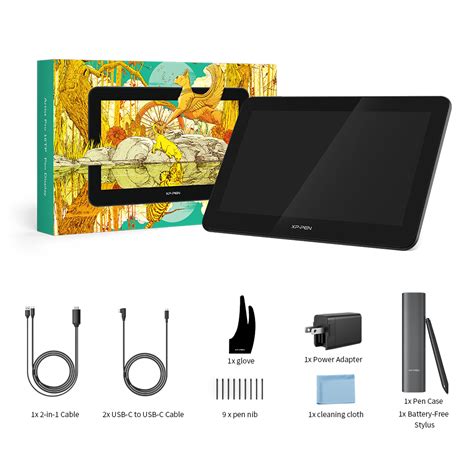
The XP-Pen Artist Pro 16TP offers flexible connectivity options with two USB-C ports. This allows for various connection methods to a computer. When using a single USB-C cable, it can potentially handle power, display signal, and data transmission simultaneously, provided the computer's port supports it. However, some users have reported that certain USB-C chargers or adapters for phones do not work with the pen display, and the USB wall power adapter is necessary for maximum brightness.
The XP-Pen Artist Pro 16 connects via a 3-in-1 cable, which includes HDMI, USB Type-A for data and power, and a separate power adapter. The USB Type-A end of this cable can only provide power for 50% brightness, necessitating the connection to the power adapter for full illumination. The HDMI connector on this cable is noted to be quite large. Attempts to connect the Artist Pro 16 using a single USB-C cable have not been successful, indicating that the 3-in-1 cable is the primary and perhaps only method of connection for this model. The USB-C to USB-C cables for the Artist Pro 16TP feature an L-shaped connector designed for the pen display.
The setup process for both devices involves installing drivers. While generally straightforward, some users have encountered issues with monitor detection and touch functionality not always working out of the box, requiring manual adjustments within the driver software or operating system settings. The driver for the Artist Pro 16TP works similarly on both Windows and MacOS, with the Windows driver offering additional Windows Ink functionality.
Artist Pro 16TP Connection & Driver Setup for Windows
Hot Keys and Control
The XP-Pen Artist Pro 16 features 8 hot keys and a dial with dual functionalities for inputting shortcuts. The dial can be used to zoom in and out by rotating its outer silver part, or to rotate the canvas by touching the black inner part. These functions are customizable, with common uses including brush resizing, canvas zooming, and canvas rotation. While the dial works smoothly for zooming in Photoshop and Krita, it may require programming for specific keybinds in other software like Paint Tool Sai or GIMP. Canvas rotation with the dial is primarily functional within Photoshop. The dial's versatility allows for customization to perform various actions based on available shortcuts. The larger hot keys near the dial are also noted for ease of use.
The XP-Pen Artist Pro 16TP, in contrast, lacks any physical hot keys. This means users must rely on the touch functionality, an external keyboard, or other devices for shortcut operations like resizing brushes, selecting tools, or navigating the canvas. This absence of physical buttons is a significant difference and may be a deciding factor for artists who prefer the tactile feedback and efficiency of dedicated shortcut keys.
Comparison: Artist Pro 16TP vs. Artist Pro 16
The choice between the XP-Pen Artist Pro 16TP and the XP-Pen Artist Pro 16 hinges on individual priorities and budget.
XP-Pen Artist Pro 16TP:
- Pros: 4K UHD resolution for exceptional sharpness, touch and multitouch functionality for intuitive navigation, vibrant colors, premium design, good price-performance ratio for its features.
- Cons: Pen has only one button, potential issues with touch functionality on MacOS, minimal lag in some demanding applications, cables might be short, no included stand, drawing performance can be affected by system hardware and software compatibility for fine lines and tapering.
XP-Pen Artist Pro 16:
- Pros: More affordable, 8 hot keys and a versatile dial for shortcuts, better anti-glare screen, stylus with X3 Smart Chip technology for enhanced sensitivity, good drawing experience with smooth lines and good pressure control.
- Cons: 1080p resolution (standard), no touch functionality, single connection method via 3-in-1 cable.
The Artist Pro 16TP is clearly the more feature-rich option, appealing to those who prioritize a high-resolution display and the convenience of touch input. Its 4K screen offers a level of detail that the 1080p Artist Pro 16 cannot match. However, the Artist Pro 16 compensates with dedicated shortcut keys and a dial, which many artists find indispensable for workflow efficiency. The Artist Pro 16's stylus, with its X3 Smart Chip, also promises a more sensitive drawing experience, potentially addressing some of the fine-line control issues reported with the Artist Pro 16TP's pen.
Conclusion
Both the XP-Pen Artist Pro 16TP and the XP-Pen Artist Pro 16 present solid choices for digital artists looking to draw directly on screen. The Artist Pro 16TP excels with its stunning 4K display and integrated touch capabilities, making it a powerful tool for detailed work and intuitive navigation, albeit with some caveats regarding pen button count and software compatibility. The Artist Pro 16 offers a more traditional and budget-friendly experience, prioritizing physical shortcut controls and a potentially more sensitive stylus, at the cost of screen resolution and touch features. Ultimately, the best choice depends on whether the crispness of 4K and the fluidity of touch are paramount, or if the efficiency of dedicated hot keys and a lower price point are more appealing.
The XP-Pen Artist Pro 16TP is XP-Pen's first pen display with 4K resolution and a touchscreen. It is a solid choice for creating artwork for anyone who wants to draw directly on screen, either to replace a regular graphics tablet or to get into digital art for the first time. The XP-Pen Artist Pro 16 provides all the main features you would want from a pen display, but at a good price, with 8 hot keys and a dial with dual functionalities for inputting shortcuts. The anti-glare screen in both are good, and makes it easier to use without them turning into a mirror. The XP-Pen Artist Pro 16TP is cheaper, but its pen only has one button on the side. The most obvious difference between the screens of both tablets is the resolution. XP-Pen Artist Pro 16TP features a 4K display, while XP-Pen Artist Pro 16 has a standard 1080P display. XP-Pen Artist Pro 16TP features touch & multitouch functionality, which makes it easier to zoom in & out or rotate the canvas. If you are the type who don’t like touch & think it gets in the way, you could easily disable it from the driver program. Touch works well on Photoshop, it’s not the same as the iPad, mind you, but it’s close enough. XP-Pen Artist Pro 16 doesn’t have touch functionality at all, but the dial on the side compensates for that. When tested on various drawing programs, the dial also worked well with Photoshop, but didn’t work out of the box with other drawing programs. Since XP-Pen Artist Pro 16TP has two USB-C ports, there are many ways you could connect it to your computer. There is only one way to connect XP-Pen Artist Pro 16 to your computer, which is done via the 3-in-1 cable that comes with it.