The digital landscape is constantly evolving, and with it, the formats we use to display and manipulate images. WebP, a modern image format developed by Google, has gained significant traction due to its superior compression capabilities, offering both lossy and lossless options that result in smaller file sizes without a drastic compromise in quality. This makes it an excellent choice for web use, speeding up page load times. However, for design and editing purposes, especially when scalability is paramount, Scalable Vector Graphics (SVG) often takes precedence. SVG, a markup language created by the World Wide Web Consortium (W3C), describes two-dimensional vector and mixed vector/raster graphics in XML. Its inherent scalability means that SVG images can be resized to any dimension without any loss of quality, making them ideal for logos, icons, and intricate illustrations. This article delves into the process of converting WebP to SVG, exploring various methods, considerations, and the benefits of this transformation.
Understanding the Formats: WebP vs. SVG
Before diving into the conversion process, it's crucial to understand the fundamental differences between WebP and SVG.
WebP:
- Format Name: WebP
- Full form name: WebP
- Type of format: Image (raster-based)
- File extension: .webp
- MIME type: image/webp
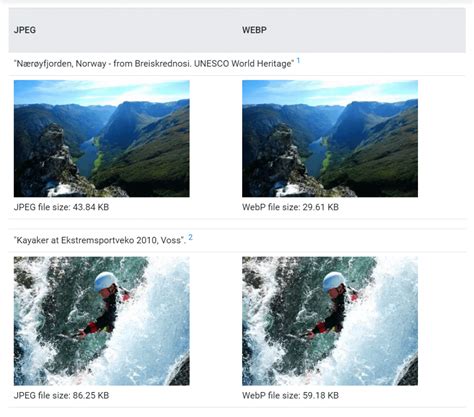
- Key characteristics: Developed by Google for efficient web use, supports both lossless and lossy compression, excellent for reducing image file sizes on websites. It is a raster format, meaning it's composed of pixels.
SVG:
- Format Name: SVG
- Full form name: Scalable Vector Graphics
- Type of format: Image (vector-based)
- File extension: .svg
- MIME type: image/svg+xml
- Key characteristics: XML-based markup language for describing vector graphics. It defines shapes, paths, and text mathematically, allowing for infinite scalability without quality degradation. Supports animation and interactivity.
The primary distinction lies in their underlying structure: WebP is a raster format, essentially a grid of pixels, while SVG is a vector format, defined by mathematical equations. This difference dictates their behavior when scaled. Enlarging a WebP image will inevitably lead to pixelation and a loss of clarity, whereas an SVG can be scaled infinitely without any such degradation.
Why Convert WebP to SVG?
The need to convert WebP to SVG often arises from practical design and development requirements. While WebP excels at delivering high-quality images efficiently on the web, SVG offers advantages in specific scenarios:
- Scalability: For logos, icons, and graphics that need to be displayed at various sizes across different devices and resolutions, SVG is the superior choice. Converting a WebP logo to SVG ensures it remains crisp and clear whether it's on a small mobile icon or a large banner.
- Editability: SVG files are essentially text-based code. This means they can be easily edited using text editors or vector graphics software. You can modify shapes, colors, and paths directly, offering a level of flexibility that raster images do not provide.
- Search Engine Optimization (SEO): Because SVG is XML-based, search engines can read and index the text within SVG files. This can be beneficial for SEO, especially if the SVG contains descriptive text elements.
- File Size for Simple Graphics: While WebP is known for its compression, for very simple graphics like logos with solid colors and clean lines, a well-optimized SVG can sometimes be smaller in file size than its WebP equivalent.
- Animation and Interactivity: SVG supports animation and interactive elements, which are not possible with standard WebP files.
Methods for Converting WebP to SVG
The conversion process from WebP to SVG is not as straightforward as converting between two raster formats like JPG and PNG. It involves a process called "vectorization," where the software analyzes the pixel data of the WebP image and attempts to reconstruct it as vector paths and shapes. This can be a complex task, and the quality of the conversion can vary significantly depending on the algorithm used.
Here are some common methods:
1. Online Converters
Numerous online tools offer WebP to SVG conversion. These are often the most accessible and user-friendly options, requiring no software installation.
ConvertSimple.com:ConvertSimple.com positions itself as a privacy-conscious tool. "Your files are converted in the web browser without our server ever knowing about them, making ConvertSimple.com's file converter the most privacy-concious tool on the web." The process is straightforward: upload WebP files by dragging and dropping or selecting them, choose SVG as the conversion target, and click "Convert." The tool supports bulk conversion, allowing users to download converted files individually or as a ZIP archive. "The files will be converted. You can download the converted files individually or click Download All to download a ZIP file with all of your converted SVG files." The conversion library used is ImageMagick.
Pixelied:Pixelied is another popular online image conversion tool that emphasizes ease of use and quality. It offers a "Fast & Easy WEBP to SVG Converter" that requires no software, plugins, or third-party app downloads. "With Pixelied, you can instantly convert WEBP to SVG within seconds. No-fuss, no-frill. It is fast, easy to use, and most of all, free." Pixelied also boasts a "Comprehensive Photo Editing Toolkit" that allows users to enhance or edit their images immediately after conversion. For those dealing with multiple files, the "Batch Convert WEBP to SVG Images" feature is particularly useful. "Converting images one at a time can be tedious and time-consuming. But with Pixelied’s convenient batch conversion feature, that’s not a problem." They offer over 100 conversion options. "Pixelied is the best online app to convert WEBP files to SVG without downloading any software or plugin. The image converter is available online and supports more than 100 image formats with the best quality." Regarding privacy, "all images converted are removed from our servers after 24 hours. We never handle or store your pictures. Your files are processed with the highest security and privacy, so only you can access them."
ImageToStl.com:ImageToStl.com also provides a WebP to SVG converter, highlighting its speed and security. "We aim to process all WEBP to SVG conversions as quickly as possible, this usually takes around 5 seconds but can be more for larger more complex files so please be patient." For privacy, "We do not store the WEBP file you submit to us. The resulting SVG file, once created, is stored for 4 hours after upload; after this time it is deleted, and the short-term download link will stop working." They also offer batch conversion capabilities. "Yes! Our WEBP tool supports full batch conversions. You can upload up to 200 WEBP files at a time."
How to use a typical online converter:
- Upload: Click the 'Choose Files' button or drag and drop your WebP file(s) into the designated area.
- Select Output: Choose SVG as the desired output format. Some tools may offer options to adjust quality or settings.
- Convert: Click the 'Start Conversion' or 'Convert' button.
- Download: Once the conversion is complete, download the SVG files individually or as a ZIP archive.
2. Vectorization Software
For more advanced control and potentially higher quality results, dedicated vectorization software can be employed. These programs often use more sophisticated algorithms.
Vectorizer.AI:Vectorizer.AI claims to offer superior vectorization results by employing a proprietary engine that combines deep learning with other advanced techniques. "The Vectorizer.AI vectorization engine is based on our own proprietary research and uses a combination of deep learning and other techniques to produce the best results." They focus on "reconstructive vectorization," aiming to accurately recreate the original vector art. "Our primary focus is on reconstructive vectorization, but we of course also support inspirational." The software identifies and explicitly represents common shapes like circles, ellipses, and rectangles, leading to cleaner and more easily editable results. Unlike some simpler algorithms that might only support two colors, Vectorizer.AI is built for full-color vectorization, including transparency. "In contrast, the Vectorizer.AI vectorization engine was built from the ground up to support full-color vectorization, including transparency and partial transparency."
Adobe Illustrator:Adobe Illustrator, a professional vector graphics editor, offers a feature called "Image Trace." While primarily designed for tracing raster images, it can be used to convert WebP files (after they are opened and potentially rasterized within Illustrator) into vector paths.
- Open WebP: Open your WebP file in Adobe Photoshop or another image editor that supports WebP. Save it as a format Illustrator can easily import, such as PNG or JPG.
- Import into Illustrator: Open Adobe Illustrator and import the saved raster image.
- Image Trace: Select the image and go to
Object > Image Trace > Make. - Adjust Settings: Use the Image Trace panel to fine-tune the settings (e.g., Mode, Colors, Paths, Corners) to achieve the desired result.
- Expand: Once satisfied with the preview, click
Object > Image Trace > Expandto convert the traced image into editable vector paths.
This method offers a high degree of control but requires familiarity with Adobe Creative Suite.
3. Command-Line Tools (for advanced users)
For users comfortable with command-line interfaces, tools like ImageMagick (which is used by some online converters) can perform WebP to SVG conversions.
Using ImageMagick from the terminal:
convert input.webp output.svgThis is a basic command. ImageMagick offers numerous options for controlling the vectorization process, but achieving optimal results often requires significant experimentation and understanding of its parameters.
Considerations for High-Quality Conversion
Converting raster WebP images to vector SVG is not always a perfect science. The quality of the output heavily depends on the complexity of the WebP image and the sophistication of the conversion algorithm.
- Complexity of the Image: Images with simple, solid colors, sharp edges, and clear shapes (like logos and icons) tend to convert better than photographs or images with gradients, subtle shading, and fine details.
- Algorithm Choice: As mentioned, different tools use different algorithms. Some basic algorithms might only support two-color vectorization, severely limiting their usefulness. Advanced algorithms, especially those using machine learning, can produce more accurate and detailed results. "Many of our competitors use old and simple algorithms that do not produce good results. Some of them only support 2-color vectorization, which significantly limits their usefulness."
- Compression Settings: When using online converters, look for options that allow you to convert without compression or to set the image quality to 100%. "Click on the settings tab and set the image quality to 100 to convert files without compression." This helps preserve as much detail as possible from the original WebP before vectorization.
- Manual Cleanup: Even with advanced tools, some manual cleanup in vector editing software like Adobe Illustrator or Inkscape might be necessary to refine paths, correct curves, or remove artifacts. "Vectorizing an image is easy for the human eye, but surprisingly hard for the computer. Most software that tries to do it produces poor results, with glaring defects."
How to Convert png to svg in Inkscape Vectorize Tutorial
Privacy and Security in Online Conversions
When using online file converters, privacy and security are paramount concerns. Users are uploading potentially sensitive files.
- Server-Side vs. Browser-Side Conversion: As highlighted by ConvertSimple.com, the most secure approach is browser-side conversion. "Your files are converted in the web browser without our server ever knowing about them." This means the files never leave your device, eliminating the risk of data interception or storage by the service provider.
- Data Deletion Policies: Reputable online converters will have clear policies on how long they retain uploaded and converted files. Many state that files are automatically deleted after a certain period (e.g., 8 to 24 hours) or can be deleted by the user. "We ensure your WEBP to SVG files are securely processed and automatically deleted 8 hours after conversion." or "all images converted are removed from our servers after 24 hours. We never handle or store your pictures."
- No Registration Required: Tools that do not require user registration or sign-up can offer an additional layer of privacy, as they collect less personal information. "Begin converting WEBP to SVG instantly with no registration or sign-up needed."
The Power of Batch Conversion
For professionals and users who frequently work with multiple image files, batch conversion is a significant time-saver. Online tools like Pixelied and ConvertSimple.com, as well as some desktop software, allow users to upload and convert numerous WebP files to SVG simultaneously.
"Converting images one at a time can be tedious and time-consuming. But with Pixelied’s convenient batch conversion feature, that’s not a problem."
With batch conversion, you can:
- Upload multiple WebP files at once.
- Initiate a single conversion process for all files.
- Download all converted SVG files in a single ZIP archive, streamlining your workflow.
- "You can upload up to 200 WEBP files at a time. Our tool will convert them all as quickly as possible."
Beyond Conversion: Editing and Enhancement
Some online conversion tools, like Pixelied, go beyond simple format conversion by offering integrated photo editing toolkits. This allows users to:
- Crop and resize images.
- Remove backgrounds.
- Add captions and text.
- Apply filters and effects.
- Adjust image dimensions and personalize photos.
"Once the conversion has been completed, our free photo editing toolkit helps you make all kinds of alterations to your images. Use our expansive toolkit to discover dozens of amazing image retouching features, photo filters, and effects to produce unique visual content within a matter of minutes!"
This all-in-one approach can significantly speed up the design process, eliminating the need to switch between multiple applications.
Frequently Asked Questions About WebP to SVG Conversion
Q: Is it possible to convert WebP to SVG for free?A: Yes, many online converters offer free WebP to SVG conversion. Tools like ConvertSimple.com, Pixelied, and ImageToStl.com provide this service without charge.
Q: Do I need to install any software to convert WebP to SVG?A: No, most online converters do not require any software installation or plugins. The conversion happens directly in your web browser.
Q: How accurate is the WebP to SVG conversion?A: The accuracy depends heavily on the complexity of the WebP image and the conversion algorithm used. Simple graphics convert well, while complex images like photographs may result in less precise vectorization. Advanced tools aim for high accuracy.
Q: Is it safe to convert my WebP files online?A: Reputable online converters prioritize user privacy and security. They typically process files in the browser or ensure files are deleted from their servers after a short period. Always check the privacy policy of the service you use.
Q: Can I convert multiple WebP files to SVG at once?A: Yes, most online converters offer a batch conversion feature, allowing you to convert numerous files simultaneously.
In conclusion, converting WebP to SVG is a valuable process for unlocking the scalability and editability of your images. With a variety of online tools and professional software available, you can choose the method that best suits your needs, ensuring high-quality results while maintaining privacy and efficiency.