The digital photography landscape is constantly evolving, and with it, the formats used to store our precious memories. For users of Apple devices, particularly those running iOS 11 or later, a new image file extension has become increasingly common: HEIC. This format, standing for High-Efficiency Image Container, is a modern approach to image storage, offering significant advantages in terms of file size and image quality compared to its long-standing predecessor, JPEG. However, its relative novelty also brings about compatibility challenges, leading many to wonder: "What is a HEIC file, and how do I use it?" This article aims to demystify the HEIC file format, explore its benefits and drawbacks, and guide users on how to work with these files effectively.
What is a HEIC File Extension?
At its core, a HEIC file is an image file that utilizes the High-Efficiency Image File Format (HEIF). The HEIC extension specifically refers to images encoded using the High-Efficiency Video Coding (HEVC) codec, which is a variant of HEIF. This format was developed by the Moving Picture Experts Group (MPEG) and finalized in 2015, with Apple being one of the first major adopters, integrating it as the default image format for iPhones and iPads starting with iOS 11.
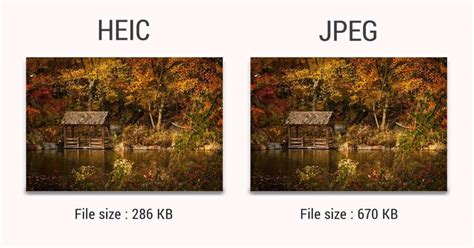
The primary motivation behind HEIC and its underlying HEIF format is efficiency. It's designed to store images with a significantly reduced file size compared to JPEGs, often by as much as 50%, without sacrificing visual quality. In many cases, HEIC files can even offer better image quality than JPEGs at the same file size. This efficiency is crucial for modern smartphones with high-resolution cameras, allowing users to capture and store more photos without rapidly consuming device storage.
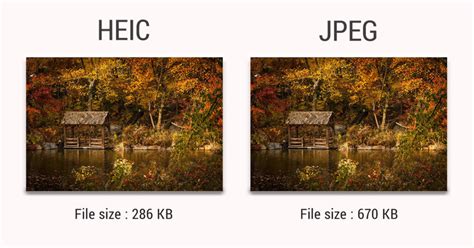
HEIC vs. JPEG: What’s the Difference?
The ubiquitous JPEG (Joint Photographic Experts Group) has been the de facto standard for digital images for decades. Its strengths lie in its versatility, high compressibility, and near-universal compatibility across devices and software. So, why has Apple, and increasingly other manufacturers, moved towards HEIC? The answer is rooted in efficiency and enhanced capabilities.
While JPEGs have served us well, HEIC represents a leap forward in image compression technology. HEIC leverages HEVC, a codec originally developed for video compression, which employs more sophisticated techniques to reduce file size. This includes using larger block sizes for compression (up to 32x32 pixels) and, for video, inter-frame compression to exploit similarities between consecutive frames. For still images, this advanced compression means that HEIC files can store more visual information in less space.
Beyond sheer file size reduction, HEIC offers other advantages. It supports a wider range of color depths, including HDR (High Dynamic Range) images, leading to more vibrant and lifelike colors. Furthermore, HEIC is a container format, meaning a single .heic file can store multiple images. This capability is leveraged by features like Live Photos on iPhones, where a short video clip is stored alongside the still image within a single HEIC file. It can also store additional metadata, such as depth maps for depth-of-field effects, and even non-destructive editing instructions, allowing for edits to be applied on the fly without altering the original image data.
The main drawback of HEIC, and the reason for much of the confusion surrounding it, is its compatibility. While Apple devices handle HEIC files seamlessly, many other platforms and older software applications do not natively support them. This lack of universal support often necessitates conversion to a more widely compatible format like JPEG, especially when sharing images or transferring them to non-Apple devices.
What is a HEIC File and How Do I Open It?
A HEIC file is essentially a container that holds image data compressed using the HEVC codec. This compression results in smaller file sizes while aiming to preserve high image quality. The efficiency of this format means that devices can store more images, and file transfers can be quicker, even over slower network connections.
Opening a HEIC file depends heavily on the operating system and software you are using:
- On Apple Devices (iPhone, iPad, Mac): These devices, running iOS 11 or later and macOS High Sierra or later respectively, natively support HEIC files. You can typically open them directly by double-clicking the file, and they will open in applications like the Photos app or Preview on macOS. On iPhones and iPads, they open automatically within the Photos app.
On Windows: Windows 10 and later versions have introduced support for HEIC files, though it often requires installing extensions.
- For Windows 10 (version 1803 and later), you can install the "HEIF Image Extensions" from the Microsoft Store. This allows you to view HEIC files in the Photos app.
- To ensure full functionality, including potential video aspects within HEIC files (like Live Photos), you might also need to install "HEVC Video Extensions," which may come with a small fee.
- For older versions of Windows (prior to version 1803), you will almost certainly need to convert HEIC files to JPEG to view them.
On Android: Many Android devices, especially newer ones from manufacturers like Samsung (which also supports HEIF/HEIC), can open HEIC files using Google Photos. If you download a HEIC file to your Android phone, opening it with Google Photos should allow you to preview it. Some third-party gallery apps also offer HEIC support.
In Web Browsers: Support for HEIC in web browsers is still developing. While some modern browsers like Chrome and Firefox have added support, it's not as universal as JPEG. For broader web compatibility, conversion to JPEG is often recommended.
In Photo Editing Software: Major photo editing applications like Adobe Photoshop (version 22.0 and later), Lightroom, and GIMP have introduced support for HEIC files, allowing for direct import and editing.
How to Convert HEIC Files to JPEG
When HEIC files present compatibility issues, converting them to the widely supported JPEG format is a common solution. Fortunately, there are several straightforward methods to achieve this, depending on your device and preference.
Convert a HEIC File to JPEG on a Mac
macOS offers built-in tools for easy HEIC to JPEG conversion:
- Open the HEIC file you wish to convert using the Preview application. If it doesn't open automatically, right-click the file, select "Open With," and choose "Preview."
- In Preview, go to the File menu.
- Select Export.
- Name your new file and choose a destination folder for saving it.
- From the Format dropdown menu, select JPEG. You can also choose other formats like PDF or PNG if needed.
- Click Save.
This process creates a new JPEG file, leaving your original HEIC file intact.
Convert a HEIC File to JPEG on Windows
Windows users have several options for conversion:
- Automatic Conversion during Transfer (iOS Devices): The simplest method is to configure your iPhone or iPad to automatically convert HEIC files to JPEG when transferring them to a computer.
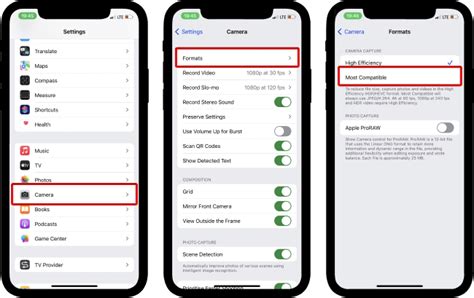
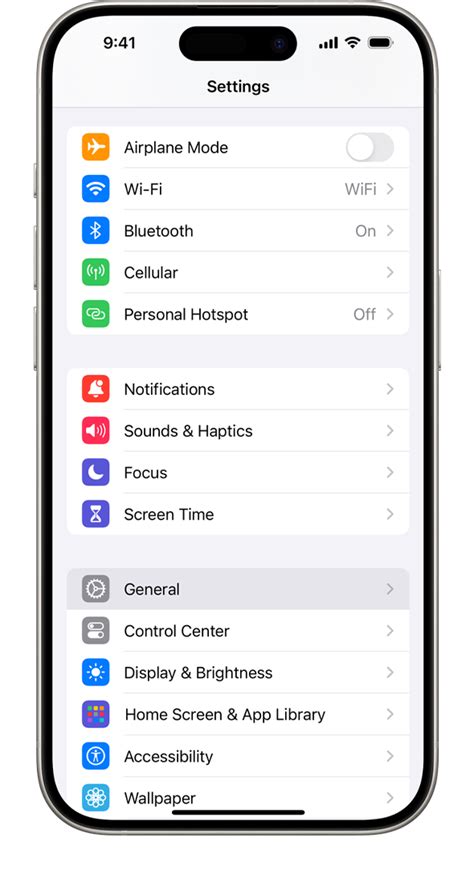
- On your iPhone or iPad, go to Settings.
- Scroll down and tap Camera.
- Tap Formats.
- Under "Transfer to Mac or PC," select Most Compatible. This will ensure that photos and videos are transferred in JPEG and H.264 formats, respectively.
Using Online Converters: Numerous free online tools can convert HEIC files to JPEG. A popular and straightforward option is a site like HEICtoJPG (www.heictojpeg.com). The process typically involves:
- Assembling the HEIC image files you want to convert.
- Visiting the conversion website (e.g., HEICtoJPG).
- Uploading your HEIC files to the site.
- Clicking the "Convert" button.
- Downloading the converted JPEG files.Caution: Be mindful of privacy when using online converters, especially for sensitive images. Reputable sites are generally safe, but it's always good practice to be aware.
Using Third-Party Software: For batch conversions or more advanced options, dedicated desktop software can be used. Programs like CopyTrans HEIC for Windows offer free conversion capabilities. After installing such software, you can often right-click HEIC files and select a conversion option directly within Windows File Explorer.
Convert a HEIC File to JPEG on Android
While some Android devices and apps support HEIC directly, conversion is often necessary for broader compatibility. Similar to Windows, you can use:
- Online Converters: Upload HEIC files to a website like HEICtoJPG from your Android browser and download the converted JPEGs.
- Third-Party Apps: The Google Play Store offers various HEIC to JPEG converter apps. Search for "HEIC to JPG converter" and choose an app with good reviews.
Can I Opt Out of HEIC Files?
For users who prefer to avoid the conversion process altogether, most modern iPhones and some Android devices offer the option to capture photos directly in JPEG format. This setting allows you to bypass HEIC and ensure all your photos are saved in the universally compatible JPEG format from the outset.
On iPhone/iPad:
- Open Settings.
- Scroll down and tap Camera.
- Tap Formats.
- Under "Photo Capture," select Most Compatible. This will switch your camera to capture JPEGs instead of HEICs.
It's important to note that by choosing "Most Compatible," you will trade the space-saving and quality benefits of HEIC for the larger file sizes and potentially lower fidelity of JPEGs.
On Samsung Phones (and some other Androids):
- Open the Camera app.
- Go to Settings (usually a gear icon).
- Look for options related to "High Efficiency Pictures" or "HEIC" and turn them off.
- This should set the camera to save photos in JPEG format.
Similar to iOS, disabling HEIC capture on Android will result in larger file sizes.
The Future of Image Formats: HEIC's Role
HEIC, and its underlying HEIF format, represent a significant step forward in digital imaging technology. The ability to achieve better image quality at half the file size of JPEGs is a compelling advantage, especially as camera resolutions continue to increase and the demand for high-quality mobile photography grows. Manufacturers like Canon, Sony, and Qualcomm have also shown support for HEIF and HEIC, indicating a broader industry trend towards more efficient image storage.
While compatibility remains a hurdle, it's a challenge that technology is rapidly overcoming. With increasing native support in operating systems, web browsers, and editing software, the need for manual conversion is diminishing. Furthermore, the HEIF container's ability to store multiple images, depth maps, and editing instructions opens up new possibilities for creative photography and image manipulation.
For now, understanding how to manage HEIC files, whether through native support or conversion, is a valuable skill for any smartphone user. As the technology matures and adoption widens, HEIC is poised to become an even more seamless and prevalent part of our digital lives, offering a more efficient and higher-quality way to capture and store the moments that matter. The transition from JPEG to more advanced formats like HEIC is a natural progression, driven by the desire for better performance and richer image data in an increasingly digital world.