For many aspiring and seasoned photographers, the digital darkroom can feel like a complex labyrinth. Two of the most powerful tools available for post-processing are Adobe Lightroom and Adobe Photoshop. While they share some functional overlap and are often used in conjunction, they are designed with distinct purposes and excel in different areas of the photographic workflow. Understanding these nuances is crucial for any photographer looking to elevate their images and streamline their editing process. This article will delve into what each program is used for, their core strengths, and how they can be best utilized to achieve professional-level results.
The Genesis of Lightroom: A Photographer's Dedicated Tool
Lightroom was meticulously crafted with the needs of photographers at its core. Unlike Photoshop, which was initially conceived as a more general image editing tool and has since evolved into a comprehensive suite for a wide array of creative professionals, Lightroom’s entire architecture is built around the photographic process. This means that every module and every tool within Lightroom is designed for a photographer's specific requirements. There are no extraneous features or convoluted methods for achieving common photographic adjustments. This focused design makes Lightroom significantly more intuitive and easier to master for photographers, even with its inherent learning curve.
The primary purpose of Lightroom is to manage, organize, and process large volumes of photographs efficiently. It excels in handling RAW files, which are the uncompressed, unprocessed data directly from a camera's sensor. When you shoot in RAW format, which is strongly recommended for maximum editing flexibility, you must process these files through a RAW processor first. This is where the majority of your fundamental image adjustments will take place. These adjustments typically include correcting white balance, reducing noise, optimizing exposure and contrast, and applying lens corrections. In essence, you are looking at performing around 90-100% of your essential edits within this RAW processing stage.
Organizing Your Photographic Life with Lightroom
Beyond its powerful editing capabilities, one of Lightroom's most significant advantages is its unparalleled organizational prowess. While Photoshop is not designed for image management, Lightroom offers a robust cataloging system. This allows photographers to sort and find images with ease using EXIF data (such as camera model, date, aperture, shutter speed, and ISO), or by creating custom folders and collections to group photos thematically or by project. This ability to manage thousands of images efficiently is a cornerstone of a professional workflow, preventing the chaos that can arise from a disorganized digital library.
Lightroom's design also facilitates working with multiple images simultaneously. Unlike Photoshop, where you typically work on one file at a time, Lightroom is built for batch editing. This means you can apply the same adjustments, such as white balance corrections or exposure tweaks, to hundreds of photos from the same shoot in a matter of moments. This efficiency is invaluable for high-volume photography genres like weddings, events, and portraits.
The Non-Destructive Advantage of Lightroom
A key feature that sets Lightroom apart, and indeed makes it indispensable for many, is its non-destructive editing workflow. When you import an image into Lightroom, you are not directly altering the original file. Instead, Lightroom creates a reference to the file, which remains safely stored on your hard drive. All edits are applied to a virtual copy, stored in a separate XMP sidecar file. This fundamental principle means that your original image is never overwritten. You always have the original file to fall back on, and you can revisit and modify any edit at any time without degrading image quality. This is complemented by an unlimited undo history, allowing you to freely experiment with adjustments.

Photoshop: The Realm of Deep Manipulation and Creative Freedom
While Lightroom is the workhorse for organizing and performing the bulk of photographic adjustments, Photoshop is the ultimate tool for complex image manipulation and advanced local editing. It's important to note that Photoshop can perform all the basic adjustments available in Lightroom, primarily through its "Camera Raw Filter" (accessible via "Filter > Camera Raw Filter"). This means that technically, any edit you can do in Lightroom, you can also achieve in Photoshop.
However, Photoshop's true strength lies in its ability to go far beyond basic adjustments. Its layer-based system is what empowers users to perform intricate tasks such as:
- Compositing: Merging multiple photographs into a single, cohesive image. This is essential for creating surreal scenes, panoramas, or replacing elements like skies.
- Object Manipulation: Adding, removing, or altering specific elements within an image with remarkable precision. Tools like Content-Aware Fill allow for seamless removal of unwanted objects.
- Detailed Retouching: Performing pixel-level edits for tasks like skin smoothing, eye enhancement, or intricate color grading on specific areas.
- Graphic Design and Digital Art: Combining images with text, vector graphics, or creating entirely new digital illustrations. The term "Photoshopped" has entered common parlance due to its powerful ability to alter reality.
- Generative AI Tools: Photoshop has also integrated cutting-edge generative AI features, allowing for even more advanced content creation and manipulation.
10-Step GUIDE: Blend Images and Create Composites with Photoshop
Photoshop's power comes from its ability to apply edits to specific areas of an image using masks, brushes, and layers, offering unparalleled control. This makes it the industry standard for tasks requiring pixel-perfect precision and extensive creative intervention.
Which Tool Should You Master First?
For most photographers, the answer to "Lightroom or Photoshop?" is unequivocally Lightroom first. Here's why:
- Ease of Learning: Lightroom's interface is tailored specifically for photo organization and editing, making it less daunting for beginners than the vast and intricate toolset of Photoshop.
- Comprehensive for Most Needs: Lightroom's post-processing tools are sufficient for 99% of common photographic adjustments. You can achieve professional-looking results without ever touching Photoshop.
- Efficient Workflow: Lightroom establishes a solid foundation for a photography workflow, emphasizing organization and batch processing, which saves immense amounts of time.
- Non-Destructive Foundation: Starting with Lightroom ensures you are working in a non-destructive environment from the outset, preserving your original files.
- Seamless Integration: You can easily export images from Lightroom to Photoshop for more complex edits. Once the edits are complete in Photoshop, saving the file automatically updates the image within your Lightroom catalog, maintaining a smooth workflow.
The Synergy: Using Lightroom and Photoshop Together
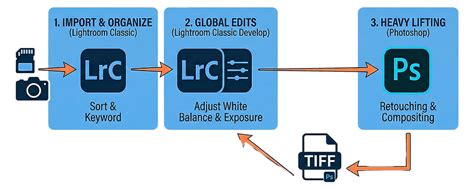
The question is rarely about choosing between Lightroom and Photoshop, but rather understanding how to use them together effectively. A typical professional workflow often looks like this:
- Import and Organize in Lightroom: Load your RAW files into Lightroom, where you can rate, tag, and organize them into collections.
- Global Adjustments in Lightroom's Develop Module: Make primary adjustments to exposure, white balance, contrast, color, and lens corrections. Utilize presets for consistent looks across multiple images.
- Export to Photoshop for Advanced Edits: For specific images requiring complex manipulation (e.g., sky replacement, object removal, detailed retouching), right-click the image in Lightroom and select "Edit In > Edit in Adobe Photoshop."
- Perform Complex Edits in Photoshop: Utilize Photoshop's layers, masks, and advanced tools for pixel-level adjustments and creative manipulation.
- Save and Return to Lightroom: After completing edits in Photoshop, save the file. The edited version will automatically appear in your Lightroom catalog, often as a TIFF or PSD file, ready for final export.
This combined approach leverages the strengths of both programs: Lightroom for efficient management and broad adjustments, and Photoshop for intricate, creative, and detailed enhancements.
Acquiring the Tools: The Adobe Photography Plan
Adobe's primary offering for photographers is the Photography Plan. This subscription service, typically priced around $10 a month, provides access to both Lightroom (including Lightroom Classic and the cloud-based Lightroom CC) and Photoshop. Given the significant overlap in basic editing functions and the complementary nature of the two programs, purchasing them together in this bundle is the most cost-effective and logical solution for most photographers. This ensures you have all the tools necessary for every stage of your photographic post-processing.
Choosing the Right Version of Lightroom
It's worth noting that Adobe offers two primary versions of Lightroom:
- Lightroom Classic: This is the desktop-based version most professional photographers use. It's designed for managing photos stored locally on your computer or external hard drives and offers the most comprehensive set of organizational and editing tools.
- Lightroom CC (now often just called Lightroom): This is Adobe's cloud-based version. It's more geared towards multi-device synchronization and mobile editing. While it has a simpler interface and fewer advanced organizational features than Classic, it's ideal for photographers who prioritize flexibility and on-the-go access.
For the most robust and feature-rich experience, especially for those managing large local libraries, Lightroom Classic is generally the preferred choice.
Conclusion: A Powerful Partnership
Lightroom and Photoshop, while distinct in their primary functions, form an incredibly powerful partnership when used in tandem. Lightroom is the indispensable tool for organizing, culling, and performing the majority of image processing, especially for RAW files, offering an efficient and non-destructive workflow. Photoshop, on the other hand, is the master of intricate manipulation, creative compositing, and pixel-level perfection, enabling photographers to push the boundaries of what's possible with an image. By understanding their respective strengths and integrating them seamlessly into your workflow, you unlock a comprehensive suite of tools that can elevate your photography from good to exceptional. For newcomers, beginning with Lightroom is strongly advised to build a solid foundation in photographic workflow and editing, with Photoshop serving as the advanced tool for those moments when deeper creative intervention is required.