In the ever-evolving landscape of digital photography, image formats are constantly being refined to offer better quality while consuming less storage space. One such format that has gained significant traction, particularly with the widespread adoption of Apple devices, is the High Efficiency Image File Format (HEIF), often encountered by users as HEIC (High Efficiency Image Coding). While HEIC offers compelling advantages in terms of file size and image quality, its native incompatibility with certain operating systems, most notably Windows, has presented a persistent challenge for many users. This article aims to demystify the HEIC format, explore its benefits and drawbacks, and provide a comprehensive guide to overcoming the hurdles associated with viewing, managing, and converting these efficient image files.
What Exactly is HEIC? Understanding the High Efficiency Image Format
HEIC stands for High Efficiency Image Container. In 2017, Apple devices with iOS 11 and above began utilizing the High Efficiency Image Format (HEIF) for coding images. Apple’s implementation of this format became widely known as HEIC (High Efficiency Image Coding). At its core, HEIC is an advanced image compression standard designed to deliver superior image quality at significantly smaller file sizes compared to traditional formats like JPEG. This efficiency is achieved through the use of High Efficiency Video Coding (HEVC) technology, the same underlying compression standard often employed for high-definition video.
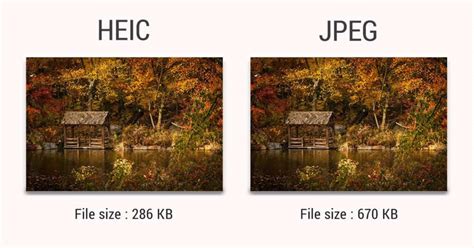
The primary advantage of HEIC lies in its ability to store images with a remarkable balance between image quality and file compression. HEIC images are almost twice as light as JPEGs of the same quality, which allows devices like iPhones to capture and store a greater number of high-quality pictures. This not only conserves valuable device storage but also facilitates faster image transfers and sharing.
Beyond single images, HEIC files possess the unique capability to store multiple images within a single file. This feature is particularly useful for functionalities like live photos, which capture a short video clip along with a still image, or for burst mode photography, where a rapid sequence of shots is taken. Furthermore, HEIC files retain rich metadata, including the time and location of capture, as well as detailed image dimensions, offering a more comprehensive record of each photograph. This makes HEIC files versatile across different types of photography and picture formats, whether you’re an online influencer or a professional photographer.
The HEIC Advantage: Why the Shift from JPEG?
The transition from the ubiquitous JPEG format to HEIC by Apple was a strategic move driven by several key factors. As smartphone cameras have become increasingly sophisticated, capable of capturing higher resolution images and advanced features like live photos and burst modes, the demand for efficient storage solutions has grown exponentially. JPEG, while a well-established and widely compatible format, struggles to keep pace with these demands without significant compromises in file size.
HEIC, on the other hand, offers a compelling solution. By employing advanced compression algorithms, it can achieve comparable or even superior image quality to JPEG at roughly half the file size. This means users can store significantly more photos on their devices, transfer them more quickly, and share them with greater ease, especially over mobile networks. Apple’s adoption of HEIC also aligned with their earlier embrace of the HEVC/H.265 video format, demonstrating a commitment to leveraging cutting-edge compression technologies for both video and still imagery. This transition also encouraged other manufacturers and photographers to explore the benefits of high-efficiency formats in different types of photography.
The space-saving capabilities of HEIC also make it an ideal format for cloud storage and mobile photo libraries. Platforms like Adobe Creative Cloud can benefit from the reduced storage footprint, allowing users to store more high-resolution images. The ability to store multiple images within a single HEIC file further enhances its utility, making it easy to manage collections of photos captured in live photo or burst mode.
Navigating the Compatibility Conundrum: HEIC on Windows
Despite its numerous advantages, the primary hurdle for widespread HEIC adoption has been its limited native support on certain platforms, most notably Windows. Unlike macOS and iOS, which offer seamless integration with HEIC files, Windows has historically lagged in providing built-in support for this format. This means that when users transfer HEIC photos from their iPhones or iPads to a Windows PC, they often encounter the frustrating "Unable to open this file" error.
By default, your iPhone often converts HEIC images to JPEG upon transfer to a PC, as it anticipates that your computer probably cannot read HEIC files. While this is a convenient workaround, it bypasses the storage and quality benefits that HEIC offers. Without native support, Windows applications, including the default Photos app and Windows Explorer, struggle to recognize and display HEIC files. This lack of compatibility can be a significant inconvenience, especially for users who rely on their Windows machines for photo management and editing.
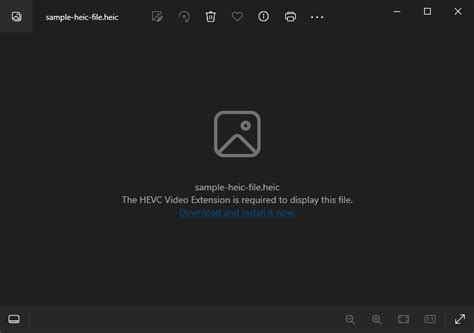
This compatibility issue stems from the fact that HEIC photo format uses specific Windows image plugins, and native Windows applications do not support this format out of the box. While renaming files with a ".heic" extension might seem like a logical first step, it isn't always effective as Windows still needs the underlying codecs to interpret the file's content.
Solutions for Viewing HEIC Files on Windows
Fortunately, the challenge of viewing HEIC files on Windows is not insurmountable. Several solutions exist, ranging from official extensions to third-party software, that enable seamless HEIC compatibility.
1. Microsoft's Official Extensions
Microsoft has recognized the growing need for HEIC support and offers official extensions through the Microsoft Store.
HEIF Image Extensions: This is the primary extension required to view HEIC files.
- Open the Microsoft Store app on your Windows computer.
- Search for "HEIF Image Extensions".
- Install the extension.
- After installation, the Windows Photos app should be able to open HEIC files.
HEVC Video Extensions: Some HEIC files, particularly those containing live or motion elements (like Live Photos from an iPhone), also require the HEVC Video Extensions. While the HEIF Image Extensions are usually free, the HEVC Video Extensions often come with a small purchase price. Some users find this charge to be "pitiful" or "absurd," but it's important to note that HEVC is a licensed technology.
After installing these extensions, you might need to associate the HEIC file type with a compatible viewer. To do this:
- Right-click on an HEIC photo.
- Select "Properties".
- Click on the "Change…" button next to "Open with…".
- Choose either the "Windows Photos" app or "Windows Photo Viewer" (if installed).
Fix: HEIF and/or HEVC Image Extensions Required (FREE | Official)
2. Third-Party Image Viewers
Several robust third-party image viewers offer excellent HEIC support and often come with additional features. These are great alternatives if you prefer not to rely on Microsoft's official extensions or encounter persistent issues.
- IrfanView: A long-standing, free, and highly versatile image viewer for Windows. IrfanView supports a vast array of image formats, including HEIC, often through plugins. It’s known for its speed and extensive customization options.
- XnView MP: Another powerful, free image viewer and organizer that handles a multitude of file formats, including HEIC. XnView MP offers batch conversion, editing tools, and a user-friendly interface.
These applications provide a comprehensive viewing experience and often allow for basic image manipulation and conversion without the need for additional codecs.
3. Dedicated HEIC Converters
If your primary goal is to convert HEIC files to a more universally compatible format like JPEG or PNG, dedicated converter software is an excellent choice. These tools are specifically designed for this purpose and often offer batch conversion capabilities, saving you time and effort.
CopyTrans HEIC for Windows: This software is specifically designed to enable HEIC support on Windows PCs. It allows you to preview and browse HEIC images directly through Windows Explorer without requiring any additional software beyond the CopyTrans HEIC codec itself. If you need your photos in JPEG format, CopyTrans HEIC can convert them, preserving crucial metadata like the date taken and geolocation. It supports batch conversion of up to 100 images at a time. CopyTrans HEIC makes things easier by enabling HEIC support on your PC. You can also use CopyTrans Photo to convert photos upon transfer from your iPhone to PC, choosing the original format: HEIC, JPEG, or both.
- To install and use CopyTrans HEIC:
- Download and install CopyTrans HEIC for Windows.
- After installation, you can often right-click on an HEIC file and select "Convert to JPEG with CopyTrans" from the drop-down menu.
- To uninstall CopyTrans HEIC, go to Control Panel > Programs > Programs and Features, find CopyTrans HEIC for Windows, and follow the uninstall prompts.
- To install and use CopyTrans HEIC:
TunesBro HEIC Converter: This free and user-friendly software is highly recommended by users who have faced issues with HEIC compatibility on Windows 11. It allows you to open HEIC files without needing extra extensions and supports batch conversion to JPG or PNG with no reported quality loss. You can simply drag and drop your HEIC files into the converter and initiate the conversion process.
Online Converters: Numerous websites offer free online HEIC to JPEG conversion services. You upload your HEIC file, and the service converts it to a JPEG or other desired format. While convenient for occasional conversions, it's crucial to exercise caution with sensitive or personal photos when using online tools, as privacy and security can be a concern. Examples include HEIC Digital's free HEIC viewer, which allows you to view and convert HEIF to JPG without installing software and examine detailed metadata.
Managing HEIC Files During iPhone to PC Transfer
When transferring photos from an iPhone to a Windows PC, the default behavior of the iPhone is often to convert HEIC images to JPEG to ensure compatibility. However, if you wish to retain the HEIC format for its space-saving benefits or to preserve original quality and metadata, you can adjust your iPhone's transfer settings.
By default, your iPhone* converts HEIC images to JPEG upon transfer to PC, because it knows your computer probably can’t read HEIC files. However, you can change this behavior:
- On your iPhone, go to Settings.
- Scroll down and tap on Photos.
- Under the "Transfer to Mac or PC" section, select Keep Originals.
With this setting, your iPhone will transfer HEIC files in their original format. You will then need to use one of the methods described above to view or convert them on your Windows PC. This approach ensures you have the original, high-efficiency files, offering maximum flexibility for later processing.
HEIC and Adobe Creative Cloud
For creative professionals who utilize Adobe software, such as Photoshop, HEIC files are becoming increasingly accessible. Adobe Photoshop, as part of Creative Cloud, fully supports HEIC files, allowing creators to open, edit, and convert them directly within their existing workflows. This integration means that users can seamlessly work with HEIC images without needing to convert them to JPEG beforehand, streamlining the editing process and preserving the original image data.
Understanding HEIC vs. HEVC
It's important to clarify the relationship between HEIC and HEVC. Both HEIC and HEVC utilize the same image encoding technology, but they are applied in different contexts. HEVC (High Efficiency Video Coding), also known as H.265, is primarily a video compression standard. HEIC (High Efficiency Image Container), on the other hand, is a photo format that leverages HEVC technology for image compression. Therefore, while related, they are distinct in their application: HEVC for video, and HEIC for images.
Conclusion: Embracing the Future of Image Efficiency
The HEIC format represents a significant step forward in image compression technology, offering a compelling blend of high quality and efficient storage. While its adoption has been met with compatibility challenges, particularly on Windows, a variety of straightforward solutions now exist to overcome these obstacles. By understanding what HEIC is, its benefits, and the available tools for viewing and conversion, users can fully leverage the advantages of this modern image format. Whether through official Microsoft extensions, versatile third-party viewers, or dedicated conversion software, managing HEIC files on any platform is now more accessible than ever, paving the way for a more efficient and high-quality digital imaging experience.