DaVinci Resolve, a powerhouse in the realm of video editing and color grading, is renowned for its professional-grade capabilities. However, like any sophisticated and demanding software, it can sometimes present users with the frustrating issue of unexpected crashes. These can occur at various stages, from startup and media import to the crucial rendering process, leaving editors at a standstill and potentially risking hours of hard work. While Premiere Pro also has its share of errors, DaVinci Resolve shares this characteristic of occasional instability. Seasoned users often approach these crashes with a degree of calm, understanding that even powerful tools have their limitations and preferring to fix the issue rather than abandon the software. This article aims to demystify the common causes behind DaVinci Resolve crashes and provide a comprehensive set of solutions to help users achieve a more seamless and stable editing experience across macOS, Windows, and Linux operating systems.
The Root Causes: Why Does DaVinci Resolve Keep Crashing?
Understanding why DaVinci Resolve crashes is the first step toward resolving the problem. The reasons are multifaceted, often stemming from a complex interplay between software, hardware, and user workflow.
System Requirements and Hardware Bottlenecks
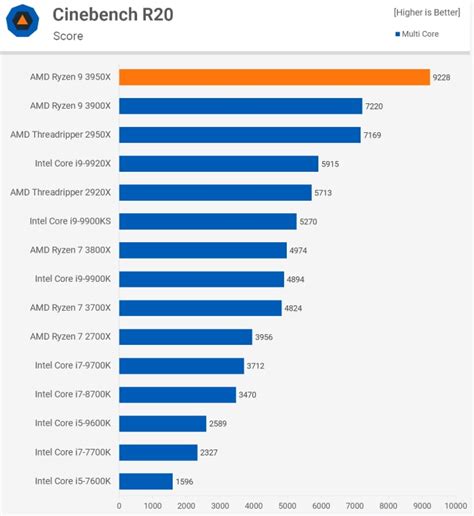
At its core, DaVinci Resolve is a highly compute-intensive application. It places significant demands on a computer's resources, particularly the Graphics Processing Unit (GPU), Central Processing Unit (CPU), and Random Access Memory (RAM).
- Insufficient System Specs: The most frequent culprit behind DaVinci Resolve crashes is a system that fails to meet the minimum hardware requirements. The software requires substantial processing power and virtual memory to operate smoothly. Even if a system barely meets these minimums, it can struggle with more demanding tasks like editing high-resolution footage (4K, 6K) or rendering complex effects.
- macOS Minimums: macOS 11 Big Sur or later, 8 GB of system memory (16 GB recommended for intensive graphics work), an M1 Apple Silicon CPU (or Intel Core i7 on older Macs), a GPU with at least 2 GB of VRAM supporting Metal or OpenCL 1.2, and a fast Solid State Drive (SSD).
- Windows Minimums: Windows 10 or later, 16 GB of system memory (32 GB recommended for intensive graphics work), an Intel Core i7 or AMD Ryzen 7 CPU, a GPU with at least 2 GB of VRAM supporting OpenCL 1.2 or CUDA 11 and the latest drivers, Blackmagic Design Desktop Video 10.4.1 or later, and a fast SSD.
- Linux Minimums: CentOS 7.3, 32 GB of system memory, an Intel Core i7 or AMD Ryzen 7 CPU, a discrete GPU with at least 2 GB of VRAM supporting OpenCL 1.2 or CUDA 11 and the latest drivers, Blackmagic Design Desktop Video 10.4.1 or later, and a fast SSD.
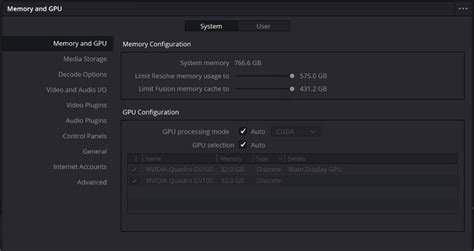
- GPU Issues: DaVinci Resolve heavily relies on the GPU for nearly every aspect of its operation, including color grading, Fusion effects, noise reduction, playback, and timeline scrubbing. When the GPU runs out of Video RAM (VRAM), Resolve doesn't typically provide a warning; instead, these errors can escalate into frequent crashes on both Mac and Windows. The VRAM acts as a high-speed warehouse for the GPU; if this warehouse is too small, operations will falter. For users with integrated graphics, the allocated VRAM is often insufficient for demanding tasks.
- RAM Limitations: Similar to VRAM, insufficient system RAM can lead to rendering crashes, especially if the system has less than 8 GB. Video editing and color grading are memory-intensive tasks, and when the system's RAM is exhausted, it resorts to using storage as temporary memory, leading to a shaky workflow.
- Storage Speed: The speed of storage devices plays a more significant role in stability than many users realize. If media files or cache reside on a slow Hard Disk Drive (HDD) or an almost-full Solid State Drive (SSD), Resolve can stutter, generate errors, and experience render failures without warning. Fast SSDs or NVMe drives are crucial for a stable experience.
Codec and Media Incompatibilities
The way video footage is encoded and the formats used can be a major source of instability.
- Incompatible Codecs: DaVinci Resolve, while supporting a wide range of codecs, does not handle all of them gracefully. Importing video files with incompatible codecs is a common reason for crashes, especially on startup. This can occur if the video is encoded in a way that doesn't align with the timeline's frame rate or the GPU's expectations.
- For instance, smartphone footage, with its variable frame rates, HEVC 10-bit clips, and highly compressed files, can push Resolve into unpredictable behavior. Even seemingly common formats like MKV can sometimes cause issues if not handled correctly.
- Variable Frame Rates (VFR): Footage recorded with variable frame rates, often from screen recordings or certain mobile devices, can confuse DaVinci Resolve, leading to playback stalls and crashes. Resolve is designed for constant frame rates.
- Highly Compressed Footage: Formats like HEVC (H.265) can be demanding, especially 10-bit HEVC. While Resolve can handle them, they require more processing power and VRAM, increasing the likelihood of crashes if the system is not robust enough.
Software and System Configuration Issues
Beyond hardware limitations, various software configurations and system settings can contribute to Resolve's instability.
- Outdated Software: Running an older version of DaVinci Resolve can lead to compatibility issues with newer operating systems, drivers, footage types, or LUTs. Blackmagic Design frequently releases updates that include bug fixes and performance improvements.
- Outdated Drivers: Graphics drivers are of virtual importance for the proper functioning of DaVinci Resolve. Outdated, corrupted, or incompatible graphics drivers are a primary cause of crashes. For intensive tasks, installing the Nvidia Studio Driver is often recommended for better performance.
- Corrupted User Preferences: In some instances, DaVinci Resolve might crash on startup due to corrupted user preference files. These files store custom settings and configurations, and if they become damaged, they can prevent the software from launching or cause it to crash.
- Operating System Inconsistencies: Minor inconsistencies within the operating system itself can affect Resolve's stability. Ensuring the OS is up-to-date is crucial, as updates often include system-level optimizations and bug fixes that benefit applications like Resolve.
- Background Applications: Other applications running in the background can consume system resources (RAM, CPU) that DaVinci Resolve needs. Antivirus software, firewalls, cloud syncing services (like OneDrive or Dropbox), and even web browsers can interfere with Resolve's operation.
- Corrupted Project Databases: DaVinci Resolve project databases can become fragile. Corruption in these databases can lead to various issues, including crashes when attempting to open or work within a specific project.
- Plugin Conflicts: Third-party plugins (OFX effects, transitions, etc.) can introduce instability. A plugin that worked perfectly in one version of Resolve might start causing crashes in a subsequent version due to API changes, GPU compatibility shifts, or unresolved bugs within the plugin itself.
- Corrupted Installation: In rare cases, the DaVinci Resolve installation itself might become corrupted during download or installation, leading to unexpected behavior and crashes.
Workflow and Project-Specific Issues
Certain user workflows and specific project elements can also trigger crashes.
- Rendering Stresses: DaVinci Resolve loves to crash during export. This is because rendering places a different kind of stress on the system compared to editing. It demands more GPU memory, stacks CPU load, decodes every clip, and runs effects at full quality.
- Specific Clips: A single corrupted clip or even a single bad frame within a clip can cause crashes every time you attempt to export. Identifying these problematic frames often requires slowly scrubbing through the timeline.
- Export Settings: Exporting to a slow drive or an almost-full SSD can destabilize the rendering process.
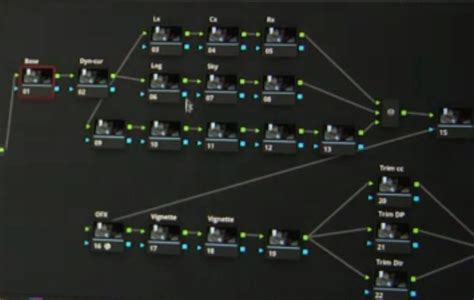
- Complex Fusion Compositions: Fusion, Resolve's powerful node-based compositing environment, can be incredibly VRAM-intensive. Complex compositions with numerous nodes, effects, and high-resolution elements can quickly exhaust available VRAM, leading to crashes.
- Noise Reduction: Built-in or third-party noise reduction tools are computationally expensive and can significantly increase GPU and CPU load, contributing to crashes, especially on systems with limited resources.
- Working with Short Timelines: While seemingly counterintuitive, working with extremely long, monolithic timelines can sometimes be more prone to errors than breaking a project into shorter, manageable sections.
- Unoptimized Media: Working directly with highly compressed footage without utilizing optimized media or proxies puts a constant strain on the system, increasing the likelihood of playback issues and crashes.
Solutions for a Stable Editing Experience
Addressing DaVinci Resolve crashes requires a systematic approach, often involving a combination of the following solutions. It's generally recommended to try the least invasive solutions first and gradually move towards more complex ones.
1. Ensure System and Software are Up-to-Date
Keeping your entire software ecosystem current is paramount for stability.
- Update DaVinci Resolve: Always ensure you are running the latest stable version of DaVinci Resolve. Blackmagic Design regularly releases updates with bug fixes and performance enhancements. You can check for updates within the application itself (DaVinci Resolve > Check for Updates) or by visiting the Blackmagic Design Support Center.
- Update Operating System: Keep your macOS, Windows, or Linux operating system updated to the latest version. OS updates often include critical system-level improvements that benefit all applications.
- Update Graphics Drivers: This is non-negotiable. Regularly update your NVIDIA, AMD, or Intel graphics drivers directly from the manufacturer's website. For NVIDIA, consider using the "Studio Driver" for optimal performance in creative applications.
2. Optimize Your Hardware and System Configuration
Addressing hardware and system settings can significantly improve stability.
- Utilize a Dedicated GPU: If your system has both integrated and dedicated graphics, ensure DaVinci Resolve is configured to use the dedicated GPU. Integrated graphics are often insufficient for Resolve's demands.
- Windows: Press Windows key + R, type
devmgmt.msc, and press Enter. Expand "Display adapters," right-click your integrated GPU (e.g., Intel HD Graphics), and select "Disable device." You may need to restart your computer. - macOS: On Apple Silicon Macs, the unified memory architecture generally handles GPU tasks efficiently. For older Intel Macs with discrete GPUs, ensure the system is prioritizing the dedicated card.
- Windows: Press Windows key + R, type
- Increase Virtual RAM (Paging File): If you're experiencing memory-related crashes, increasing virtual RAM can help.
- Windows: Navigate to System and Security > System > Advanced system settings. Under the "Advanced" tab, click "Settings" in the Performance section. Go to the "Advanced" tab in the Performance Options box and click "Change" under Virtual memory. Untick "Automatically manage paging file size for all drives," select your system drive (usually C:), choose "Custom size," and set Initial size to 3500 MB and Maximum size to 7000 MB (or higher based on your system RAM).
- Manage GPU Acceleration: Sometimes, disabling GPU acceleration within DaVinci Resolve can help diagnose issues. If this resolves the crash, you can then try re-enabling it or troubleshooting specific GPU-related settings.
- DaVinci Resolve Preferences: Go to DaVinci Resolve > Preferences > Memory and GPU. Experiment with different GPU processing modes or disable GPU acceleration entirely to test.
- Close Background Applications: Before launching DaVinci Resolve, close all unnecessary applications, especially those that consume significant resources like web browsers, cloud storage clients, and communication apps.
- Check File Permissions: Ensure that DaVinci Resolve has the necessary read and write permissions for the folders containing your media files and where it saves cache and project files. If permissions are an issue, try moving your footage to a different folder with broader access.
3. Manage Media and Project Settings
How you handle your media and configure your project settings plays a crucial role.
- Convert Incompatible Codecs: If you suspect a codec issue, transcode your footage to a DaVinci Resolve-friendly format. H.264 (MP4) or ProRes are excellent choices. Tools like Winxvideo AI can convert various formats to H.264 MP4, MPEG-4 MP4, MOV, or ProRes with minimal quality loss. For MKV files, consider remuxing to MP4 without re-encoding if the codecs are compatible, using an "Auto Copy" mode.
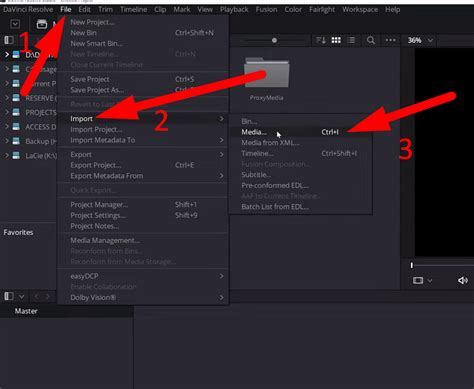
- Conversion Process Example:
- Open a video converter tool.
- Add your problematic video file.
- Select H.264 (codec) with an MP4 (container) as the output format.
- Choose a destination folder and start the conversion.
- Conversion Process Example:
- Utilize Optimized Media or Proxies: For high-resolution or highly compressed footage, creating optimized media (ProRes or DNxHD) or proxies significantly reduces the strain on your system during editing. This is especially beneficial for lower-spec machines or when working with demanding codecs.
- DaVinci Resolve Workflow: Right-click on clips in the Media Pool or timeline and select "Generate Optimized Media" or "Create Proxy Media."
- Adjust Project Settings: If you're working with high-resolution footage on a less powerful system, consider adjusting your project settings for better playback performance.
- DaVinci Resolve Project Settings: Go to File > Project Settings (or click the cog icon in the bottom right). In the "Master Settings" tab, you can lower the "Timeline Resolution" and "Playback Resolution" (under "Proxy Resolution") to reduce the rendering load.
- Manage Render Cache: Clearing the render cache can sometimes resolve issues.
- Playback Menu: Go to Playback > Delete Render Cache and choose "All" or "User."
- Shorten Timelines: Break down very long projects into smaller, more manageable timelines. This can help isolate issues and reduce the overall load on the system at any given time.
4. Software Troubleshooting and Maintenance
Deeper software-related issues often require specific troubleshooting steps.
- Reinstall DaVinci Resolve: If other solutions fail, a clean reinstallation of DaVinci Resolve can resolve issues caused by corrupted installation files. Ensure you back up your project databases before uninstalling.
- Delete User Preferences: Corrupted preference files can cause startup crashes.
- Location:
- Windows:
%AppData%\Blackmagic Design\DaVinci Resolve\Support\ Preferences\ - macOS:
~Library/Preferences/Blackmagic Design/DaVinci Resolve/
- Windows:
- Close DaVinci Resolve, navigate to this folder, and delete the "Preferences" folder. The software will recreate it with default settings upon the next launch.
- Location:
- Check for Corrupted Databases: If a specific project is causing crashes, try creating a new project and importing the problematic timeline into it. If the issue persists, the database might be corrupt. You may need to restore from a backup.
- Disable Third-Party Plugins: Temporarily disable all third-party OFX plugins to see if one of them is causing the crash. If the crashes stop, re-enable them one by one to identify the culprit.
- Compatibility Mode (Windows): While less common for Resolve, you can try running the application in compatibility mode. Right-click the DaVinci Resolve shortcut, select "Properties," go to the "Compatibility" tab, and check "Run this program in compatibility mode for:" selecting your operating system.
5. Advanced Troubleshooting and Workarounds
For persistent or complex issues, consider these advanced steps.
- Monitor System Temperatures: Overheating can cause components to throttle performance or shut down, leading to crashes. Use monitoring software to check CPU and GPU temperatures during intensive tasks. Ensure adequate cooling for your system.
- Check Storage Health and Space: Ensure your hard drives and SSDs have sufficient free space and are not showing signs of failure. Run disk health checks.
- BIOS Settings (IGPU Multi-Monitoring): For some systems, ensuring that "IGPU Multi-Monitoring" is activated in the BIOS settings can help. Access BIOS by restarting your computer and pressing the setup key (often F2, F10, F12, or Del) during boot. Navigate to the Advanced tab and locate this setting.
- Render in Chunks: If crashes occur during export, try rendering your project in smaller sections. This can help pinpoint specific parts of the timeline that might be causing the issue.
- Alternative Export Location: Try exporting to a different drive or folder to rule out issues with the target location.
How To Fix Davinci Resolve Crashing or Not Responding
6. When All Else Fails: Community and Cloud Solutions
If you've exhausted all troubleshooting steps, seeking external help or considering cloud-based solutions can be beneficial.
- DaVinci Resolve Community and Support: The Blackmagic Design forums and online communities are invaluable resources. Other users may have encountered and solved similar issues. You can also reach out to Blackmagic Design's official support team for assistance.
- Cloud Computing Services: For extremely demanding projects or if your local hardware consistently bottlenecks your workflow, cloud computing platforms (like Vagon Cloud Computer) can offer a powerful alternative. These services provide access to high-end hardware, including powerful GPUs, allowing you to run Resolve without being limited by your local machine's capabilities. This can be particularly helpful for GPU-heavy tasks like complex Fusion compositions or intensive color grading.
By systematically applying these solutions and understanding the underlying causes, users can significantly improve the stability of DaVinci Resolve and minimize disruptive crashes, allowing them to focus on the creative process.