Adobe Lightroom Classic, a cornerstone for photographers worldwide, can sometimes transform from a powerful editing suite into a frustratingly sluggish application. This slowdown can manifest in various ways, from agonizingly long import times to unresponsiveness during editing. Understanding the underlying causes is the first step to reclaiming your productivity and enjoying a smoother workflow. The performance of Lightroom Classic is a complex interplay of software settings, hardware capabilities, and user habits, all of which contribute to its processing demands.
The Role of Previews in Lightroom Classic Performance
At the heart of Lightroom Classic's performance, and often its biggest bottleneck, lies the generation and management of image previews. These previews are essential for displaying and editing your images efficiently, but their creation and handling can significantly impact speed. Lightroom Classic utilizes different types of previews, each serving a specific purpose and impacting performance differently.
Minimal previews, also known as embedded previews, are the smallest and fastest to create. They are essentially the low-resolution JPEG previews generated by the camera itself and embedded within the RAW files. While quick to generate, they offer limited fidelity and may not accurately represent the final image, especially after adjustments are made in the Develop module.
Standard previews are generated by Lightroom Classic using the Camera Raw engine. This means they are processed and can sometimes appear different from minimal or embedded previews, particularly if you've applied adjustments in the Develop module. The size of these standard previews can be specified, ideally based on your display's resolution. Choosing a size that closely matches the longest edge of your screen resolution, but is not shorter than it, ensures you're not wasting computational resources on previews that are too large for your display to render. The larger the monitor and the higher its resolution, the more work Lightroom Classic performs to calculate previews and update pixels during editing.
The most demanding type of preview is the 1:1 preview. These previews represent a 100% view of the actual pixels in your image and are also processed by the Camera Raw engine. When Lightroom Classic generates 1:1 previews, it simultaneously creates minimal and standard previews, making all three available for the program's use. However, because they involve processing a significant amount of image data, generating 1:1 previews can take a considerable amount of time. To display and work with photos effectively, Lightroom Classic requires either a standard or a 1:1 preview, depending on the specific task.

If, upon import, you only instruct Lightroom Classic to generate minimal or embedded previews, the application will automatically create standard and 1:1 previews as you work. This on-demand generation process can significantly hinder performance, leading to lag and unresponsiveness. To mitigate this, it's crucial to manage when and how you render your 1:1 previews.
You have the option to render 1:1 previews during the import process by navigating to the File Handling panel within the import window and selecting "Render Previews > 1:1." Alternatively, for a speedier import, you can opt to render only minimal or standard previews on import. Subsequently, you can manually render 1:1 previews for selected photos at any time by choosing "Library > Previews > Render 1:1 Previews" from the Grid view in the Library module.
Managing the Preview Cache for Optimal Performance
The previews, including thumbnails, small previews, and 1:1 full-size previews, are stored in a file named [Catalog name] Previews.lrdata. This file can grow quite large, especially if you have the option to delete previews set to "Never" or "After 30 Days." This is particularly relevant if you have a large number of photos or frequently work with high-resolution images. If your hard disk space suddenly becomes limited, checking the size of this Previews.lrdata file is a critical troubleshooting step.
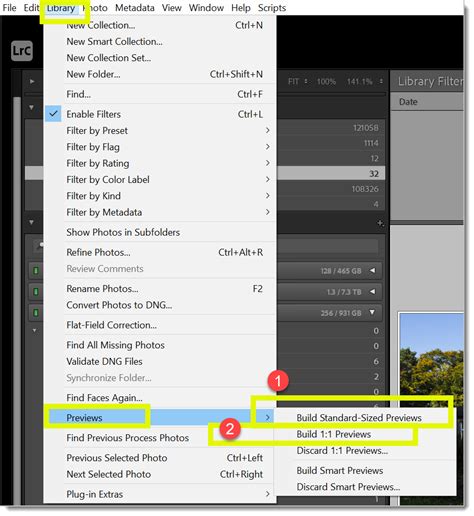
By default, Lightroom Classic keeps the preview cache file in the same folder as your catalog file ([Catalog name].lrcat). However, if you move the catalog file or store it separately from its cache, Lightroom Classic will need to regenerate all the previews, which can be a time-consuming process.
Lightroom Classic offers settings to manage the deletion of these large 1:1 previews. By default, 1:1 previews are deleted weekly. When these large previews are removed, the size of the Previews.lrdata file is reduced, though the entire file is not deleted unless you manually remove it. While the file size doesn't become excessive unless 1:1 previews are rarely or never deleted, its impact on your hard disk depends on your available storage. It's important not to confuse the Previews.lrdata file with the [Catalogname] Smart Previews.lrdata file, which specifically contains your Smart Previews.
To optimize performance and manage disk space, it's advisable to configure the automatic deletion of 1:1 previews. If disk space is not a concern, keeping 1:1 previews for as long as possible can optimize performance, as they are readily available for editing tasks. However, regularly monitor the size of this file, especially if you have the automatic deletion set to infrequent intervals or disabled.
The Impact of Syncing and Cloud Services
Syncing images with Adobe Creative Cloud can also contribute to Lightroom Classic's performance issues. The syncing process actively uses CPU and system resources to create previews and upload or download images. To alleviate this, temporarily pausing "Sync With Lightroom" during import and editing on your desktop computer can significantly improve performance. This allows your system to dedicate more resources to the immediate tasks at hand, rather than juggling background cloud operations.
Stopping Lightroom Classic From Syncing
XMP Sidecar Files and Metadata Management
Lightroom Classic stores changes made to your files, such as adding keywords or correcting red-eye, within the Lightroom Classic catalog. However, for other applications like Adobe Bridge and Camera Raw to recognize these edits, they must be saved as XMP (extensible metadata platform) data. Lightroom allows you to save edits to XMP either automatically or manually.
If you frequently switch between Lightroom Classic, Adobe Bridge, and Camera Raw, enabling automatic XMP writing is the most convenient approach, as it eliminates the need to manually save metadata changes. However, this continuous background process of writing changes to XMP files can significantly degrade Lightroom Classic's performance. If you primarily work within Lightroom Classic and don't regularly use other applications for editing, consider disabling the "Autowrite XMP" preference in the preferences menu. Even with this option turned off, you can still manually save metadata changes to individual files whenever necessary.
It's worth noting that Lightroom Classic now temporarily pauses automatic XMP writing during imports, resuming the process once the import is complete. This is a small but helpful optimization to prevent performance dips during a critical workflow stage.
Catalog Optimization and Maintenance
Lightroom Classic is constantly writing changes to its catalog file (.lrcat). Over time, as the catalog grows and accumulates data, it can become fragmented or bloated, leading to performance degradation. To address this, Lightroom Classic provides a catalog optimization feature. Regularly optimizing your catalog by choosing "File > Optimize Catalog" can significantly improve performance and catalog stability.
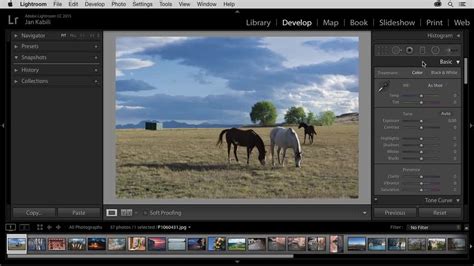
For further optimization and to enhance catalog stability, it's recommended to select the options "Test Integrity Before Backing Up" and "Optimize The Catalog After Backing Up" whenever you exit Lightroom Classic and back up your catalog. This proactive maintenance ensures your catalog remains healthy and efficient.
Camera Raw Cache and Develop Module Performance
When you view or edit RAW images in the Develop module, Lightroom Classic generates up-to-date, high-quality previews. This process uses the original image data as its foundation and then updates the preview to reflect any processing or adjustments applied. The speed of this process can be further enhanced if the original image data is readily accessible in the Camera Raw cache.
By default, Lightroom Classic sets the Camera Raw cache size to 5 GB. To further speed up cache operations, it's beneficial to ensure this cache resides on a fast hard disk, ideally your primary SSD. Increasing the Camera Raw cache size, especially if you have ample free space on your SSD, can lead to quicker loading of images in the Develop module and more responsive editing.
The Strain of Local Corrections and Presets
Certain tools within Lightroom Classic, while powerful, can become performance drains when overused. The Spot Removal Tool and the Local Corrections Brush, for instance, are not optimized for applying hundreds or thousands of individual corrections. If you find yourself making an extensive number of local adjustments, it's worth checking your History panel. The History panel itself has no limits and its entries are not deleted unless specified. However, each slider adjustment applied to a local correction or gradient filter affects the entire correction area. Some sliders default to a value that activates them by default, adding to the processing load with each application.
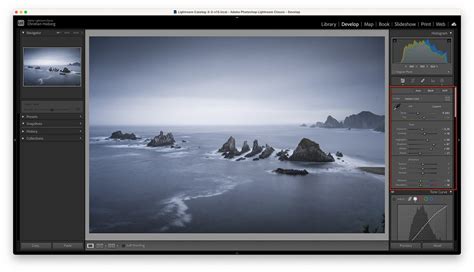
Similarly, adding a large number of presets to Lightroom Classic, whether custom-made or from third-party sources, can reduce performance. The Develop module generates thumbnails in the Navigator panel for each preset, and this process becomes more noticeable with a substantial collection, especially once you exceed 2,000 presets.
System Resources and Hardware Considerations
While software optimizations are crucial, the underlying hardware plays a significant role in Lightroom Classic's performance. Insufficient RAM, a slow hard drive, or an underpowered processor can all contribute to a sluggish experience. For example, a user with an Intel i7-3770k processor, NVIDIA GXO1060 graphics, and 32GB of RAM reported significant slowdowns, indicating that even seemingly robust hardware can be pushed to its limits by the demands of Lightroom Classic.
The catalog being on its own SSD is a good practice, but the speed of that SSD, along with the speed of your primary system drive where the Camera Raw cache resides, is paramount. If your system drive is nearing capacity, it can also lead to performance issues. Aim to keep at least 25% of your operating system hard drive and any external drives free. Drives that are nearly full slow down significantly.
User Experiences and Practical Solutions
Many photographers have encountered similar performance issues. One user described their Lightroom Classic becoming "bordering on totally unusable," with minutes-long load times and import processes that took 3-6 minutes per step. This led to the dreaded "white-out screen and Lightroom is not responding" message. Despite having a catalog with few photos at the start of the year, using high-resolution RAW files from cameras like the Nikon D4 and D810, and regularly optimizing the catalog, the slowdown persisted.
Another user experienced significant lag, with simple brush strokes taking up to 20 seconds and sliders failing to update photos in real-time. Toggling between full screen and the develop module could take a full minute. This user identified their Adobe settings, rather than their hardware (a 2015 MacBook Pro with 16GB RAM), as the primary culprit.
Their successful troubleshooting steps included:
- Making the Camera RAW Cache Bigger: Increasing the cache size from the default 2GB to accommodate more image data.
- Disabling Address and Face Lookup: Turning off these background processes that add no value to their workflow.
- Manually Optimizing the Catalog Upon Shutdown: Diligently optimizing and backing up the catalog at least monthly.
- Altering Standard Preview Size: Adjusting the standard preview size to better match their monitor's resolution (1920x1080 on a 27" HP monitor), opting for 1440 pixels with Medium Preview Quality.
- Data Management: Recognizing the impact of accumulating a large number of images. Recommendations included creating new catalogs annually and aiming to keep individual catalogs below 10,000 images.
These practical tips highlight that often, the key to improving Lightroom Classic performance lies in understanding and adjusting its internal settings and how you manage your files and catalog. By systematically addressing these areas, photographers can significantly reduce slowdowns and enjoy a more fluid and efficient editing experience.