Photoshop, a cornerstone of digital art and design, is renowned for its powerful capabilities. However, this very complexity can sometimes lead to frustrating performance issues, manifesting as lag, freezing, or outright crashes. This article delves into the common culprits behind a sluggish Photoshop experience, particularly for users who have invested in capable hardware but still find their software underperforming. We will explore a comprehensive range of solutions, from basic preference adjustments to hardware considerations, aiming to help you reclaim a smooth and efficient workflow.
The Frustration of a Lagging Photoshop on New Hardware
It's a disheartening experience: you've meticulously assembled a brand-new computer, boasting impressive specifications like an Intel Core i5-12600k CPU, an ASUS ROG STRIX B760-F motherboard, 32GB of Corsair DDR5 RAM with Intel XMP, a fast Crucial P3 Plus SSD, and a powerful Nvidia GeForce RTX 3060 GPU. You install your essential software, including Photoshop, expecting seamless performance. Yet, instead of the lightning-fast responsiveness you anticipated, Photoshop crawls. You've tried everything: uninstalling and reinstalling, tweaking Nvidia Control Panel settings, adjusting 3D management options, experimenting with different Photoshop versions, and even toggling the Graphics Processor in Performance Settings, while also testing various RAM allocations. Your graphics processor is compatible, and you're at a loss. This scenario is not uncommon, and it highlights that even with robust hardware, software optimization and configuration play a critical role.
Understanding Photoshop's Resource Demands
Adobe Photoshop is a sophisticated and resource-intensive application. Its ability to handle a vast array of complex operations, from intricate layer management and advanced filters to 3D rendering and video editing, comes at a cost to computing resources. When Photoshop is sluggish, it often signifies that the software is struggling to access or process the necessary data efficiently. This can stem from a variety of factors, including how the software is configured to utilize your system's resources, the nature of the files you're working with, and even the presence of external factors that interfere with its operation.
Initial Troubleshooting: The Quick Fixes
Before diving into more complex solutions, several straightforward adjustments can often yield significant improvements.
Resetting Preferences: If Photoshop was running well previously but has recently become slow, resetting its preferences to default values is a crucial first step. This can resolve issues caused by corrupted settings files. To do this, close Photoshop and then launch it again while holding down the Shift + Option + Cmd keys on macOS, or Shift + Alt + Ctrl on Windows.
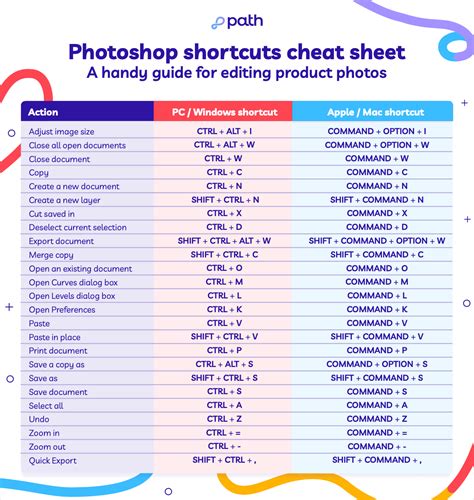
Skipping Third-Party Plugins: Uncertified or poorly optimized third-party plugins can be a major source of performance degradation. To test if a plugin is the culprit, close Photoshop and relaunch it while holding down the Shift key. This will prevent Photoshop from loading any third-party extensions. If performance improves, you can then re-enable plugins one by one to identify the problematic one.
Disabling the Home Screen: The Photoshop home screen, which displays recent projects, can sometimes cause startup issues or slow down the application. To disable it, navigate to Edit > Preferences > General (or Photoshop > Preferences > General on macOS) and deselect "Auto Show the Home Screen."
Export Clipboard: Photoshop automatically saves copied data to the clipboard for easy pasting into other applications. While convenient, this can consume resources. If you primarily use drag-and-drop or don't frequently copy-paste between applications, disabling this feature can help. Go to Edit > Preferences > General and deselect "Export Clipboard."
Optimizing Photoshop's Performance Preferences
The "Performance" tab within Photoshop's preferences is a critical area for fine-tuning how the application utilizes your system's resources.
Memory Usage: Photoshop relies heavily on RAM. By default, it allocates a moderate amount. You can increase this allocation to improve performance, especially when working with large files or multiple applications simultaneously. Navigate to Edit > Preferences > Performance and adjust the "Memory Usage" slider. A common recommendation is to set this to 80-85% of your available RAM, ensuring that your operating system and other essential processes still have sufficient memory.
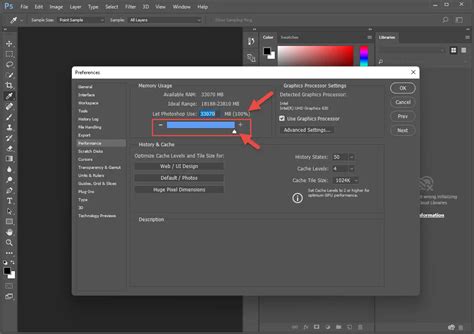
Cache Levels and Cache Tile Size: Photoshop uses "cache levels" to store temporary data that it frequently accesses. Increasing the "Cache Levels" can speed up operations on larger files by allowing Photoshop to hold more frequently used data in RAM. The optimal number depends on your workflow; for larger files, increasing this to 6 or higher can be beneficial. The "Cache Tile Size" also plays a role, determining how Photoshop breaks down images for processing. Experimenting with these settings can yield performance gains.
Scratch Disks: Photoshop utilizes "scratch disks" - hard drive space - to store temporary data when RAM is insufficient. If your primary drive is slow or nearly full, this can severely impact performance. It's highly recommended to use a fast Solid State Drive (SSD), preferably an external one with ample free space, as your primary scratch disk. Navigate to Edit > Preferences > Scratch Disks and configure your preferred drives. Ensure that your primary scratch disk is a fast SSD with at least 20% free space.
How To Fix Scratch Disks are Full In Adobe Photoshop 2024 & 2025 | FAST & EASILY
Graphics Processor (GPU) Settings: Your GPU plays a significant role in accelerating many Photoshop operations.
- Compatibility: Ensure your GPU is compatible with Photoshop and that you are using the latest drivers.
- Enabling/Disabling: In Edit > Preferences > Performance, you'll find the "Use Graphics Processor" option. While enabling it generally boosts performance, in some rare cases, particularly with untested or incompatible hardware or drivers, it can cause instability or slowdowns. If you suspect your GPU is causing issues, try unchecking this option to see if performance improves.
- Advanced Settings: If your GPU is enabled, explore the "Advanced Settings" within the Graphics Processor section. Options like "Drawing Mode" (Basic, Normal, Advanced) and "Anti-aliasing" can be adjusted. For instance, setting the Drawing Mode to "Basic" can sometimes improve performance on less powerful GPUs or with specific types of operations.
- VRAM Allocation: For 3D features, there's a setting under Preferences > 3D to adjust "Available VRAM For 3D." Lowering this to 80% can sometimes resolve issues if your GPU's VRAM is a bottleneck.
Nvidia Control Panel Tweaks: For users with Nvidia GPUs, specific settings in the Nvidia Control Panel can impact Photoshop's performance.
- Manage 3D Settings: Within the Nvidia Control Panel, under "Manage 3D Settings," you can configure global settings or program-specific settings for Photoshop.
- Power Management Mode: Setting this to "Prefer maximum performance" can ensure your GPU is not throttling its speed.
- Texture Filtering - Quality: Setting this to "High performance" might offer a slight boost.
- Vertical Sync: While often beneficial for gaming, VSync can introduce input lag. For Photoshop, experiment with setting it to "Off" or "Use the 3D application setting."
File-Specific and Workflow-Related Issues
The nature of the files you're working with and your overall workflow can significantly influence Photoshop's speed.
Large and Complex Files: Large file sizes, high resolutions, and numerous layers, especially those with complex layer styles, masks, or smart objects, inherently demand more processing power.
- Flattening Layers: If you have layers that are no longer being actively edited, consider flattening them or merging them to reduce the complexity of the document.
- Complex Vector Paths: Intricate vector paths with a high number of anchor points can slow down operations. Use the "Simplify" tool in Photoshop to reduce the number of points in such paths.
- PSD Compression: For PSD files, you can disable compression under the Performance tab in Photoshop preferences. This can speed up saving times, though it may result in larger file sizes.
Network Drives and External Peripherals:
- Network Drives: Editing files directly from network drives is strongly discouraged. Photoshop's performance can be severely hampered by network latency. Always copy assets to a local drive, edit them in Photoshop, and then upload them back to the network drive.
- External Peripherals: Disconnect any external peripherals or drives that are not essential for your current work. Sometimes, specific devices or their drivers can interfere with Photoshop's operation. If you suspect a peripheral is the cause, try testing Photoshop with it disconnected.
Antivirus Software: Overly aggressive antivirus software can sometimes interfere with Photoshop's processes, scanning files in real-time and slowing down operations. Consider disabling your antivirus temporarily to see if it impacts performance. If it does, try adding Photoshop and its associated Adobe applications to your antivirus software's whitelist or exclusion list.
Hardware and System-Level Considerations
While software optimizations are crucial, sometimes the bottleneck lies at the hardware or operating system level.
System Requirements: Always ensure your computer meets or exceeds the recommended system requirements for the version of Photoshop you are using. This includes CPU speed, RAM, and GPU capabilities.
RAM Upgrade: As mentioned, RAM is critical. If your system has less than 32GB of RAM, upgrading it can provide a significant performance boost, especially for complex projects. Ensure you are using RAM that is compatible with your motherboard and CPU, and that XMP profiles are correctly enabled in your BIOS.
Storage: The speed of your storage drives plays a vital role. Using an NVMe SSD for your operating system, applications, and scratch disk is highly recommended for optimal performance. Ensure you have adequate free space on all your drives, with at least 20% free on your primary drive and scratch disk.
CPU: While your i5-12600k is a capable processor, very large and complex files, or intensive operations like rendering, can still push its limits. Ensure your CPU cooler is effectively managing temperatures, as thermal throttling can significantly reduce performance.
Graphics Card Drivers: Outdated or corrupt graphics card drivers are a common cause of performance issues. Always keep your GPU drivers updated from the manufacturer's website (Nvidia, AMD, or Intel). If performance issues began after a driver update, consider rolling back to a previous, stable version.
Operating System Optimization:
- Background Processes: Close any unnecessary applications running in the background that consume system resources. Use Task Manager (Windows) or Activity Monitor (macOS) to identify and terminate resource-hungry processes.
- System Virtual Memory/Page File: On Windows, the page file (virtual memory) settings can impact performance. While the system usually manages this automatically, on systems with ample RAM, adjusting these settings might offer minor improvements. Consult your OS documentation for details.
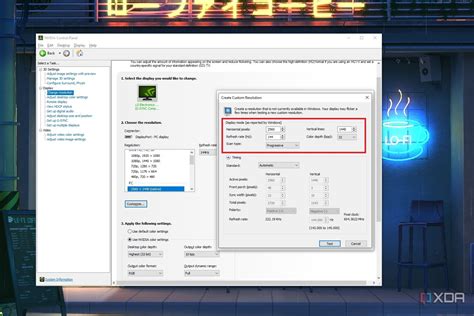
- Display Resolution: In some cases, running at a lower display resolution can free up GPU resources. This is a less common fix for Photoshop but can be explored if other options fail.
Addressing Specific Error Messages and Scenarios
"Loading Halide Bottlenecks…" Freeze: If Photoshop freezes at the splash screen displaying "Loading Halide Bottlenecks…", this is often caused by corrupt color profiles or excessively large preset files. Updating Photoshop to the latest version usually resolves this. If not, try removing custom preset files.
Libcef.dll Errors: If you encounter errors related to libcef.dll, follow the specific troubleshooting steps provided by Adobe for this issue.
Untested/Uncertified Hardware: Adobe does not officially support using Photoshop with untested or uncertified hardware, especially GPUs. While it may work, performance and stability can be unpredictable. If you suspect your GPU is the issue and it's not on Adobe's certified list, disabling GPU acceleration (Preferences > Performance > Use Graphics Processor) is a necessary diagnostic step.
The TourBox Option: Enhancing Workflow Efficiency
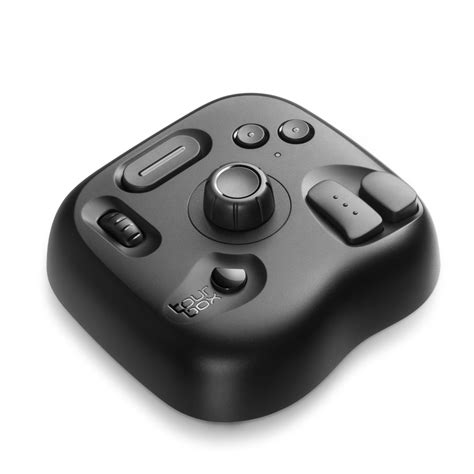
For users who work extensively in creative applications like Photoshop, specialized hardware can significantly enhance efficiency. Devices like the TourBox are designed to map frequently used tools and commands to physical buttons and dials. This can streamline complex workflows, allowing for quicker adjustments and mode switching (e.g., switching between "High Performance" and "Standard Performance" modes with custom macros). While not a direct fix for underlying performance issues, such devices can make the experience of working with Photoshop feel faster and more intuitive.
By systematically working through these troubleshooting steps, from simple preference adjustments to deeper system and hardware considerations, you can identify and resolve the underlying causes of slow performance in Adobe Photoshop, ensuring your creative process is as smooth and efficient as possible.