In today's visually driven world, the ability to transform a collection of individual photographs into a cohesive and compelling narrative is an art form accessible to everyone. Photo collages serve as digital scrapbooks, memory mosaics, and powerful storytelling tools, allowing us to stitch moments together so they don’t drift apart. For Windows users, a plethora of software options exist, each offering unique approaches to this creative endeavor. From simple, quick grid layouts to intricate, freeform designs, the best collage maker for a PC truly depends on individual needs and desired creative control. This comprehensive guide delves into the world of Windows collage maker software, exploring its features, functionalities, and the nuances that distinguish one application from another.

The Essence of Collage Making: Beyond Simple Arrangement
At its core, photo collage software empowers users to combine multiple images into a single, visually appealing composition. However, the process extends far beyond mere arrangement. Modern collage makers offer a sophisticated suite of tools that allow for detailed editing, creative embellishment, and personalized expression. This includes the ability to crop, rotate, resize, and flip photos with speed and precision, ensuring each element fits harmoniously within the overall design. Beyond these fundamental adjustments, users can enhance images with brightness and contrast controls, straighten tilted horizons, and even apply regional effects to specific portions of a photograph. The advent of AI and machine learning has further revolutionized this space, enabling features like background replacement and super-resolution resizing, which allow for upscaling images while maintaining dazzling image quality.
The primary distinctions between various collage software products often lie in their freedom of layout, the depth of editing tools available, the variety of pre-designed templates, and the extent to which features are locked behind premium plans. When considering how to make a collage on a PC, favoring software that allows for free reshuffling of cells and fine-tuning of colors for each photo can transform an average collage into something truly remarkable. A small tip from experience: whether choosing a simple collage app or a feature-heavy suite, starting by selecting images with similar lighting and tones can instantly make your final layout look cleaner and more intentional.
Exploring the Landscape of Windows Collage Software
The market for Windows collage maker software is diverse, catering to a wide range of user skill levels and creative aspirations. While many web-based solutions work seamlessly on Windows 10 and Windows 11 without requiring a download, desktop tools often provide deeper editing power and a more robust user experience.
Movavi Photo Editor: The All-Rounder Champion
Movavi Photo Editor consistently emerges as a top contender, lauded for its strong blend of speed, polish, and creative control. It stands out due to its quick workflow and clear interface, where editing tools are easily accessible without the clutter found in many other applications. Movavi is hard to beat for users seeking professional-looking collages with ample room for detailed retouching. It supports Windows 10, Windows 11, and older Windows builds. The overlay tools are integrated alongside the main editing kit, streamlining the process of sorting out layouts, performing color correction, or removing unwanted objects. Its AI background removal is surprisingly precise, and sharpness controls yield tighter results when preparing images for a collage. Recent updates have introduced neural network enhancements, custom frames, and local area editing utilities, which are invaluable for making specific parts of an image stand out. Users often find a direct workflow here, allowing them to assemble pro-looking collages with minimal effort. Movavi also provides a library of effects, frames, and a straightforward interface that facilitates completing a layout in a short session without sacrificing control over fine details.
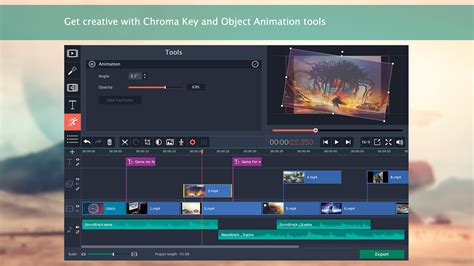
- Pros: Extremely easy to learn, top-notch customer support, large library of helpful articles and tutorial videos.
- Cons: Slower processing for large images.
Photo Collage Maker (AMS Software): Simplicity and Speed
For those who desire a fast collage with light edits and ready-made layouts that don't slow down the creative process, Photo Collage Maker by AMS Software is an excellent choice. Despite its unassuming appearance, this compact Windows program is powerful, enabling the design of collages, photo albums, postcards, and small prints. It offers a user-friendly experience, allowing users to jump straight into ready templates, add photos, decorate pages, and then print or post their work online. The drag-and-drop layout ensures a clear workflow, making it ideal for users who prefer to focus on content rather than mastering a complex editing suite. A first collage typically takes minutes to create. The application hides a large set of frames, masks, filters, textures, clipart, and gradients, which help in changing the mood of a layout or building a design from scratch. Users can tune the background, add shapes, or adjust color filters without getting lost in complex panels.
- Pros: Easy three-step photo collage creation for PC, basic photo editing tools, export options cover every common format.
- Cons: Lacks advanced photo editing features and tools, no macOS version.
Turbo Collage: Artistic Pile-Ups and Layered Freedom
Turbo Collage shines for users who enjoy photo piles and loose, layered layouts that convey a casual yet tidy aesthetic. Unlike many collage apps that rely on rigid grids, Turbo Collage offers more freedom in its design approach. It works on both Windows and macOS, and its style is well-suited for quick, playful layouts. The software includes a sample collage library, providing inspiration and allowing users to copy ideas instead of starting from scratch. A storyboarding feature is also available, which assists in developing a loose plan before finalizing the layout. While its photo pile mode is particularly noteworthy, and its Polaroid layout looks great, users have occasionally reported printing hiccups.
- Pros: Offers various templates and layouts, very easy to use, great photo pile mode that feels natural, works on both Windows and macOS, and has mobile apps.
- Cons: Has simple, basic layouts and templates only, printing can stop working without warning.
Icecream Photo Editor: Clean, Minimalist, and User-Friendly
Icecream Photo Editor strikes a balance between simplicity and creative options, making it a strong free collage maker for PC users. It provides all the necessary tools for arranging images in grids, polaroid styles, or more freeform layouts. The dedicated photo collage section features numerous templates, and users can easily swap photos by clicking and dragging. Frame borders are fully adjustable in terms of width and color. Beyond collage creation, the software boasts a comprehensive set of tools for individual photos, including cropping, rotating, adding text, stickers, blur effects, and filters. Its automatic enhancement feature quickly corrects exposure or color problems, and recent updates ensure better stability and faster export. Users can also create picture mosaics or themed collages for various occasions.

- Pros: Simple photo collage creator for Windows PCs, lets you precisely arrange each image exactly how you want, includes core editing tools like cropping, flipping, and artistic filters, frame widths and colors fully adjustable.
- Cons: Limited selection of collage templates, some advanced photo editing features are missing, no Mac version.
PhotoPad: A Surprisingly Flexible Option
At first glance, PhotoPad might appear a bit dated in its design, but its collage functionality is robust and on par with more prominent names in the industry. This free collage maker for PC opens a pop-up box upon starting a new project, offering tabs and settings for layouts, borders, and photo edges. Users can select from square, rectangular, circular, and freehand templates, or opt for a custom layout. Tilt effects, edge blurring, and page size adjustments add polish, while the drag-and-drop interface makes swapping photos effortless. Beyond collages, PhotoPad supports cropping, resizing, rotating, text captions, and creative filters. It also incorporates AI-powered enhancements like background removal and image upscaling. A significant advantage is its cross-platform compatibility, working across Windows, macOS, Android, Kindle, iPad, Linux, and Chromebook, allowing collage creation on almost any device.
- Pros: Wide selection of collage templates and layouts, customizable borders, tilt, and edge effects, supports multiple image formats and direct export options, AI-powered tools like background removal and super resolution, simple drag-and-drop interface for fast creation, truly cross-platform free collage maker.
- Cons: The software interface feels a little dated, tilted photo edges can appear slightly pixelated, some advanced AI features may require time to master.
Advanced Features and Considerations
When venturing into collage creation, several advanced features can elevate your work from a simple arrangement of photos to a compelling visual story.
HDR Images and Background Replacement
The ability to create High Dynamic Range (HDR) images by combining several differently exposed photographs into one offers a way to capture a wider range of light and shadow detail, resulting in more lifelike and visually rich images within your collage. Furthermore, background replacement tools, often powered by AI, allow for the seamless substitution of original backgrounds with transparency, a solid color, or an entirely different image. This is particularly useful for isolating subjects and placing them in new, creative contexts within a collage.
How to Make a Collage in Lightroom Classic [2026 Full Guide]
AI-Powered Resizing and Resolution Enhancement
For collages that will be printed or displayed at larger sizes, maintaining image quality is paramount. PhotoPad, for instance, utilizes AI and Machine Learning when resizing pictures to a higher resolution. This "super resolution" technology aims to upscale images while preserving dazzling image quality, enhancing photo size and increasing resolution without significant degradation. This is a crucial feature for ensuring that even zoomed-in elements of your collage remain sharp and clear.
Photo to Art Transformations and Photo Mosaics
Transforming photos into artistic renditions like cartoons, oil paintings, or sketches can add a unique artistic flair to a collage. This feature allows users to turn their photographs into works of art, creating a distinct stylistic theme for their collection of images. Photo mosaics offer another intriguing possibility, where an overall image is composed of numerous smaller thumbnail images. Creating a photo mosaic typically involves selecting a set of images to be used as tiles and adjusting parameters like the number of tiles per column and row to achieve the desired effect.
Blurring Backgrounds for Social Media
In the age of social media, making subjects stand out is key. Many collage makers now offer tools to selectively blur distracting backgrounds, perfect for creating profile pictures, eye-catching posts, and engaging story content that pops on platforms like Instagram or Facebook. This technique effectively draws the viewer's attention to the main subject of the photograph.
Key Takeaways for Choosing Your Windows Collage Maker
The "best free collage maker for a PC" ultimately rests on whether you prioritize quick grids or full creative control. When figuring out how to make a collage on a PC, favor software that allows you to reshuffle cells freely and adjust colors for each photo. Tiny tweaks often transform an average collage into something you're proud to share.
- For quick, no-fuss grids: Photo Collage Maker (AMS Software) is a strong contender.
- For artistic pile-ups and layered layouts: Turbo Collage excels.
- For clean, minimal, and user-friendly designs: Icecream Photo Editor is an excellent free option.
- For a surprisingly flexible and cross-platform experience: PhotoPad offers a robust feature set.
- For the strongest mix of speed, polish, and creative control: Movavi Photo Editor is often considered the best overall.
Remember that while many free collage makers exist, some may add watermarks to the final collage. However, dedicated image editors often allow you to save collages without watermarks, even in their free versions. Furthermore, the terms of service for each creator should be reviewed to understand licensing agreements for commercial use. Collage making software primarily focuses on photo and image editing, though some advanced video editing suites may incorporate video collage features.
Ultimately, photo collages are more than just an arrangement of pictures; they are a way of stitching moments together, preserving memories, and telling stories. With the right instrument, those scattered images on your laptop can transform into a narrative worth printing or sharing, and choosing the best free collage maker for a PC matters more than people think. A good editor doesn't just arrange pictures; it helps you shape the feeling behind them, turning scattered images into a story worth sharing.