In the ever-evolving landscape of video editing software, finding a tool that strikes a balance between powerful features and user-friendliness can be a significant challenge. Wondershare Filmora has consistently positioned itself as a solution to this very dilemma, aiming to empower creators of all levels to produce polished videos without the steep learning curve often associated with professional-grade software. This review delves into the core functionalities, advanced features, and overall value proposition of Wondershare Filmora, examining its suitability for beginners, intermediate users, and even those looking to push the boundaries of their creative output.
Bridging the Gap: Filmora's Place in the Editing Ecosystem
For those who have embarked on a quest for an accessible video editor, the name Wondershare Filmora is likely to have surfaced frequently. At its heart, Filmora endeavors to tackle one of the most persistent hurdles in video editing: the creation of professional-looking videos without the encumbrance of complex timelines, intricate plugins, or professional-level workflows. The pertinent questions that arise are: is Filmora a reliable tool? Does its cost align with its perceived value? And does it offer enough substance to evolve beyond a beginner's editor as one's skills advance?
Through an in-depth analysis of real user feedback, long-term performance observations, and hands-on experience, the consensus is that Filmora performs admirably for everyday editing tasks, excels in its ease of use and extensive library of built-in effects, yet still presents limitations when tackling highly advanced, professional-grade projects.
Platform Support and Accessibility
Wondershare Filmora demonstrates broad platform compatibility, making it accessible across a wide range of devices. It is available for Windows and macOS on desktop, offering a robust editing experience. For creators on the go, Filmora extends its reach to iOS and Android mobile devices, allowing for editing and project management across different platforms. This cross-platform support is particularly valuable for users who begin a project on their computer and wish to continue or refine it on their smartphone or tablet.
User Interface and Learning Curve
One of Filmora's most lauded attributes is its exceptionally low learning curve. The software is designed with an ultra-beginner-friendly approach, ensuring that even individuals with no prior video editing experience can quickly become comfortable with its interface. The dashboard is intuitively organized, presenting clear options for creating new projects, accessing cloud storage, exploring the Creator Hub, utilizing the Toolbox, or referring friends.
The "Create Project" tab offers immediate access to starting a new edit from scratch. Below this, users will find quick tool options that dynamically adapt based on recent usage, including features like AI Extend, Audio to Video, Add Captions, AI Idea to Video, Text to Video, Smart Short Clips, and Silence Detection. A dedicated projects section facilitates swift resumption of unfinished tasks. Crucially, users can set the desired aspect ratio for their video project from the outset, optimizing the editing window for specific formats, such as the 9:16 ratio ideal for short-form video content.
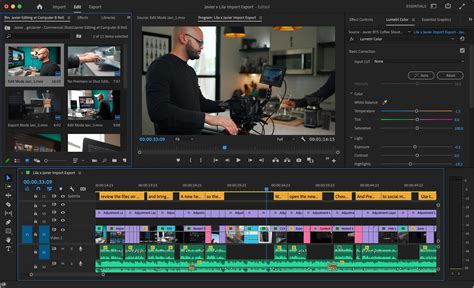
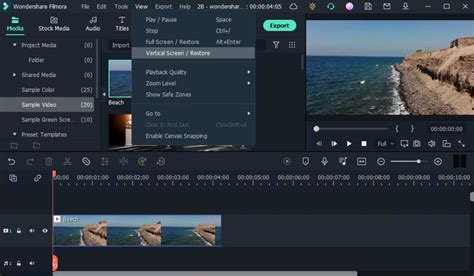
Upon initiating a new project, the editing window opens, presenting an interface familiar to users of other video editors. However, Filmora distinguishes itself by offering six different layout options, a rarity in editing software. All features are readily accessible, promoting intuitive use for efficient editing. Tasks like trimming, audio adjustments, adding transitions, and applying visual effects are straightforward. The program employs a magnetic timeline, simplifying the addition of clips and ensuring they connect seamlessly without gaps. Filmora supports multiple timelines, allowing for instant changes across different tracks with real-time preview. The timeline itself can be easily resized and navigated using keyboard shortcuts and mouse wheel controls, enhancing user comfort. A quick toolbar situated above the timeline provides immediate access to essential features like Undo, Redo, Delete, Split, Crop, Audio Stretch, Quick Text, AI Extend, and Silence Detection, further customizable by dragging and dropping preferred items.
Core Filmora Features: The Foundation of Your Edits
Filmora has consistently aimed to be an "approachable powerhouse" in video editing, a descriptor that holds true given its blend of beginner-friendly design and surprisingly capable functionality.
Intuitive Timeline Editing and Drag-and-Drop Workflow
A significant strength of Filmora lies in the natural feel of its timeline from the moment a user begins. The timeline instills confidence in beginners while offering sufficient depth for more polished edits. Essential video editing functionalities such as ripple delete, track locking, audio scrubbing, and speed ramping are readily available without being overwhelming.
Extensive Built-in Effects Library, Templates, and Presets
Filmora is frequently characterized as an "effects playground," and this description is fitting. It is pre-loaded with a vast array of transitions, filters, LUTs (Look-Up Tables), titles, overlays, animations, and complete drag-and-drop templates. While many editing tools necessitate the meticulous adjustment of numerous sliders to achieve a cinematic look, Filmora allows users to simply apply a preset and customize it only if desired. Whether you need a YouTube intro, a lower third graphic, a color grading preset, or motion graphics, Filmora's library significantly reduces editing time. While not every effect is perfect, and some may appear overly templated if overused, the most impactful ones are readily accessible. Some premium effects may reside within Filmora's add-on libraries.
AI-Powered Tools: Enhancing Efficiency and Creativity
Filmora has embraced Artificial Intelligence, integrating AI tools not as mere gimmicks, but as solutions to common editing pain points. The Auto-Enhance feature can revitalize dull footage without requiring manual color grading. AI Object Removal efficiently erases unwanted elements from the background. Furthermore, Filmora's content generation tools are remarkably robust for a consumer-level editor, including:
- Text-to-Video: Utilizing advanced AI models, this feature allows for the creation of video content from textual prompts.
- Image-to-Video Animation: Transform still images into animated sequences.
- AI Thumbnail Creator: Generate eye-catching thumbnails for your videos.
- AI Portrait Tools: Apply stylized effects and enhancements to human subjects.
- Stylized Painting Modes: Apply artistic filters to video footage.
- Animated Title Generators: Create dynamic and engaging title sequences.
Complementing these is AI Mate, Filmora's integrated AI editing assistant. While these AI tools are not infallible, they are exceptionally capable for everyday creators. For instance, the AI enhancer can breathe life into washed-out footage with minimal effort.
Advanced Audio Controls and Built-in Sound Tools
Audio is often a stumbling block for beginners, and Filmora simplifies this process considerably. The Audio Ducking feature is particularly appreciated, automatically lowering the volume of background music when speech is detected, thereby ensuring clarity in spoken content. The software also includes tools for beat detection, a library of sound effects, royalty-free music, and synchronization tools for aligning audio with video. For highly complex sound design or multi-track mixing, users might encounter some limitations.
Color Correction and Grading Tools
Color grading is an area that can inspire both excitement and trepidation among editors. Filmora strikes a commendable balance, offering advanced controls for tweaking color temperature, contrast, HSL (Hue, Saturation, Lightness), curves, and exposure, akin to professional software. Simultaneously, it allows users to simply apply a LUT and consider the task complete. Filmora's strength lies in its approachable interface, where no critical functions are buried or obscure. For creators aspiring to achieve cinematic looks without the steep learning curve of software like DaVinci Resolve, Filmora's grading tools hit the sweet spot.
Screen Recording, Webcam Capture, and Voiceover Tools
Filmora transcends its role as a mere editor, functioning as a compact production studio. This is a significant convenience for educators, gamers, tutorial creators, or businesses producing onboarding videos. Its efficiency is particularly evident when producing repeatable content or when a streamlined workflow is paramount. The software includes robust screen recording capabilities, allowing users to capture their desktop activity, and webcam capture for picture-in-picture recordings. Integrated voiceover tools enable direct narration over the timeline, further simplifying the production process.
Key Features in Detail
Filmora's feature set is extensive, catering to a wide range of editing needs.
Basic Editing Features
- Trimming: Filmora offers straightforward methods for shortening video clips. Users can drag the edges of clips on the timeline to adjust their start and end points, or utilize the Split Tool to divide clips and remove unwanted sections. In-and-out cuts can also be made directly within the preview panel for precise trimming.
- Effects, Transitions, and Filters: A vast collection of graphical effects, including overlays and LUTs, are available to enhance video quality. These can be applied by dragging and dropping them onto the timeline. Transitions can be added between clips via a dedicated panel. Filmora 15 introduced Animated Charts, allowing users to upload data in XLSX or CSV format and customize various visual elements of the chart, with local file processing ensuring data privacy.
- Color Grading: Beyond basic adjustments, Filmora provides granular control over individual colors, curve adjustments, and color grading wheels, enabling precise manipulation of a video's color balance and aesthetic.
- Audio Adjustment: Filmora offers flexible audio controls, including volume adjustments, smooth fade-ins and fade-outs, pitch and speed tweaks, and keyframing for dynamic audio transitions. The AI Voice Enhancer clarifies voice recordings, while Audio Ducking automatically lowers background music during speech. Separating audio from video clips is recommended for greater editing control.
- Green Screen (Chroma Key): Filmora's Green Screen module extends beyond traditional green or blue screens, allowing any color to be keyed out for various effects. Settings like Tolerance, Edge Thickness, and Edge Feather provide fine-tuning capabilities.
- Adjustment Layer: This feature acts as a transparent overlay on the timeline, affecting all clips beneath it. Multiple Adjustment Layers can be stacked to apply effects, color corrections, and other enhancements simultaneously across multiple clips.
Advanced Editing Features
- Speed Ramping: This versatile feature allows for the creation of smoother video frames and more dynamic visual narratives by controlling the speed of clips. Freeze frames and reverse speed options further enhance creative possibilities.
- Motion Tracking: Filmora's Motion Tracking feature enables users to attach text, effects, or other elements to moving objects within footage. The ability to adjust and resize the tracking box frame by frame offers a blend of automation and manual precision.
- Keyframing: The Keyframe Graph Editor allows for the creation of smooth animations by customizing multiple keyframe points and controlling elements like scale, position, path curve, and opacity. The panel offers various graph options (Continuous, Basic, Ease in, Ease out, Linear, Freeze) for seamless motion. While powerful, this feature can be complex for beginners and may lead to a cluttered timeline on smaller screens; adjusting timeline height or using 'Timeline' layout mode can improve usability.
- Dual Timeline-Editing (New): To address cluttered timelines in element-heavy projects, Filmora introduces dual-timeline editing. This feature breaks projects into smaller sections, allowing users to manage video and audio assets on the main timeline while creating compound clips for animation elements on a second timeline. Users can easily switch between timelines and copy/paste elements, maintaining an organized workflow.
- Pen Tool (New): A highly useful tool for tracing custom shapes around objects or areas within a clip, which can then be styled with preset effects or solid colors. Fine-tuning options like radius, zoom nodes, feathering, and color adjustments are available. Keyframes can be used for motion animation, making it ideal for static or single-frame subjects.
Project Management and Sharing
Filmora offers robust cross-platform capabilities, facilitating seamless transfer of projects between devices. Its cloud-based collaboration experience allows teams to work together effectively. A Wondershare ID enables users to back up imported media files, favorite effects, project files, and custom titles, ensuring project safety and accessibility.
AI Features in Filmora
Filmora's integration of AI tools is a significant aspect of its modern offering, enhancing both efficiency and creative potential.
- AI Text Based Editor: This feature transcribes dialogue from video footage into text, allowing users to edit the video by editing the transcript itself. This is particularly beneficial for dialogue-heavy content and can significantly reduce editing time, especially when combined with tools like Silence Detection. The module also offers subtitle generation and translation capabilities.
- Smart Background Music â AI Vocal Remover: The AI Music Generation module creates royalty-free music based on mood and duration, and can even analyze projects to suggest fitting music. The AI Vocal Remover accurately extracts vocals from music tracks, a valuable tool for remixing or creating instrumental versions.
- AI Text to Video: This module generates video content from textual prompts, analyzing scripts to match keywords and concepts with available footage. While currently somewhat rudimentary, with computer-generated voices and stock footage, it represents a forward-looking feature.
- AI Smart Masking and Planar Tracking: These advanced AI modules significantly streamline complex tasks. AI Motion Tracking and Planar Tracking can isolate objects or track movement on flat surfaces within footage, automating processes that previously required hours of manual work. This is particularly useful for attaching elements to moving targets or applying precise corrections.
Export Options and Pricing
Filmora provides a comprehensive range of export options, supporting up to 4K resolution and multiple aspect ratios. Videos can be directly published to platforms like YouTube and Vimeo.
Filmora's pricing structure offers flexibility:
- Free Tier: Available for testing, but exports include a watermark, making it unsuitable for publishing.
- Basic Plan: Priced at $49.99/year, this plan offers a traditional editing experience but lacks AI credits.
- Advanced Plan: At $59.99/year, this plan is considered the sweet spot for most creators, including all updates, 1000 AI credits, and sufficient cloud storage.
- Perpetual Plan: A one-time fee of $79.99 grants access to all advanced features and free updates for a specific version, though major version upgrades are not included.
The cost scales based on AI feature usage, cloud storage needs, and reliance on Filmora's asset library. While praised for its affordability and feature set, some users express concerns about the increasing reliance on subscriptions and AI credits.
Performance and Reliability
Filmora generally offers good performance, especially on systems meeting the recommended specifications. The timeline is responsive, and playback is smooth for most common editing tasks. However, when processing 4K videos with multiple tracks, effects, and AI tools, some users have reported occasional lag during playback and longer render/export times compared to top-tier professional software. For instance, exporting a 4K movie of a few minutes might take upwards of 25 minutes, a duration significantly longer than that required by applications like iMovie or Final Cut Pro on comparable hardware. This suggests that while Filmora is capable of handling professional projects, its performance may become a bottleneck for extremely demanding workflows. Stability is generally good, though, with consistent user feedback indicating a reliable experience for the majority of tasks.
User Feedback and Reliability
Across platforms like Reddit, YouTube, Trustpilot, and app stores, user feedback for Filmora is largely positive, particularly concerning its ease of use and value for money. Beginners and intermediate creators often praise its intuitive interface, extensive effects library, and time-saving AI features, which help them achieve polished results quickly. Common points of praise include:
- Short learning curve: Ideal for new video editors.
- Advanced Video Editing Features: Surprisingly capable for its price point.
- Interactive UI: User-friendly and easy to navigate.
- Advanced Color Grading: Offers professional-level control.
- Instant Video Editing Modes: Quick creation options for various needs.
- Integration of AI Tools: Enhances efficiency and adds creative possibilities.
However, consistent criticisms also emerge:
- Limited Plugin Support: Compared to professional suites, the extensibility through third-party plugins is more restricted.
- Mastering Advanced Tools: While accessible, some advanced features may require time to fully master.
- AI Smart Short Clips: Some users have noted minor performance lags with specific AI features.
- Subscription Model and AI Credits: Frustration over the increasing reliance on subscriptions and the management of AI credits is a recurring theme.
- Performance with 4K: As mentioned, performance with high-resolution footage can be a concern for some users.
Final Verdict: Is Wondershare Filmora Right for You?
For beginners, casual creators, or anyone seeking to edit videos quickly without facing a steep learning curve, Wondershare Filmora is an excellent choice and well worth the investment. Its drag-and-drop workflow, extensive presets, and AI tools make editing intuitive, even for first-time users. The availability of a free version allows users to test the software's capabilities, though the watermark renders it unsuitable for professional output.
Filmora becomes more limiting when users push into highly advanced color grading, engage in complex multi-track timelines, or pursue intricate cinematic workflows. However, for creators who prioritize speed, polished exports, and a tool that actively assists rather than hinders their creative process, Filmora consistently delivers. It successfully occupies a valuable niche between basic, entry-level editors and the more complex, professional suites, making it a compelling option for a broad spectrum of video creators.
tags: #wondershare #filmora #full