When your XP-Pen stylus suddenly stops responding, it can be a frustrating experience, especially when you're in the middle of a creative project. This guide aims to provide a structured and detailed approach to troubleshooting common issues, helping you get your stylus back to drawing on your digital canvas as quickly as possible. We will delve into specific solutions, from simple checks to more in-depth technical considerations, ensuring that users of all technical backgrounds can follow along.
Understanding the Basics: Connection and Power
Before diving into complex solutions, it's crucial to ensure the fundamental aspects of your stylus and tablet setup are functioning correctly.
Checking the Physical Connection:The most common culprit behind a non-responsive stylus is a loose or faulty connection.
- Tablet to Computer: For many XP-Pen tablets, the stylus's functionality is intrinsically linked to the tablet's connection to your computer. Ensure the USB cable is securely plugged into both the tablet and your computer. Try using a different USB port on your computer, as some ports may have power delivery issues or be faulty. If your tablet uses a separate power adapter, confirm it is also securely connected and the outlet is functioning.
- Stylus to Tablet (Wireless/Battery-Powered Models): If you are using a wireless or battery-powered stylus, ensure it is properly paired with the tablet if applicable. For battery-powered models, replace the batteries with fresh ones, even if you believe the current ones are still charged. Low battery power can often lead to erratic behavior or complete non-responsiveness.
Powering On and Off:A simple restart can often resolve temporary glitches.
- Restart Your Computer: This is a universal troubleshooting step that can clear out software conflicts and refresh system processes, which might be interfering with your stylus's recognition.
- Restart Your XP-Pen Tablet: Some XP-Pen tablets have a power button or require a disconnection and reconnection to effectively "restart" their internal processing. Consult your specific tablet's manual for the correct procedure.
Driver and Software Essentials
The drivers are the bridge between your XP-Pen hardware and your operating system, enabling your computer to interpret the stylus's input. Outdated, corrupted, or incorrect drivers are a frequent cause of stylus malfunction.
Verifying Driver Installation:
- Check Device Manager (Windows): On Windows, open the "Device Manager" (search for it in the Start menu). Look for your XP-Pen tablet under "Human Interface Devices" or "Mice and other pointing devices." If it's not listed, or if there's a yellow exclamation mark next to it, the drivers are likely not installed correctly or are experiencing issues.
- Check System Information (macOS): On macOS, you can check System Information (found in Applications > Utilities) under "USB" to see if your tablet is recognized.
Updating or Reinstalling Drivers:
- Download Latest Drivers: Visit the official XP-Pen website and navigate to the support or downloads section. Select your specific tablet model and download the latest available driver for your operating system.
- Uninstall Existing Drivers: Before installing the new drivers, it's often recommended to uninstall any existing XP-Pen drivers. You can usually do this through the "Add or Remove Programs" feature in Windows or by dragging the driver application to the Trash on macOS. A clean installation can prevent conflicts.
- Install New Drivers: Run the downloaded driver installer and follow the on-screen instructions. It's often best to do this with the tablet disconnected from the computer, and then reconnect it when prompted by the installer.
- Restart After Installation: Always restart your computer after installing or updating drivers to ensure all changes take effect.
Checking for Software Conflicts:Sometimes, other software running on your computer can interfere with the XP-Pen drivers.
- Antivirus and Firewall Software: Occasionally, security software might mistakenly identify driver components as a threat, blocking them from running correctly. Temporarily disabling your antivirus or firewall (and remembering to re-enable it afterward) can help diagnose this. If this resolves the issue, you may need to add an exception for XP-Pen software in your security program's settings. The information about FireWall being a potential issue is noted.
- Other Graphics Tablet Software: If you have previously used drivers or software from other graphics tablet manufacturers, these can sometimes conflict with XP-Pen drivers. Ensure all remnants of other tablet software are completely uninstalled.
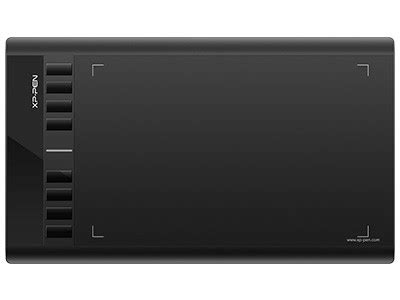
Stylus Hardware and Settings
Even with correct drivers and connections, issues can arise from the stylus itself or its configuration.
Stylus Button Functionality:If your stylus has programmable buttons, check if they are functioning. If a button is stuck or malfunctioning, it might be causing the stylus to be recognized incorrectly or to enter a mode where it doesn't draw. Gently inspect the buttons for any debris and try pressing them a few times to ensure they are not physically jammed.
Pen Pressure Sensitivity:If your stylus is detected but not drawing, or drawing with a very faint line, it might be an issue with pen pressure sensitivity settings.
- XP-Pen Driver Settings: Open the XP-Pen driver software. There should be a section for pen settings where you can adjust pressure sensitivity. You can often perform a "test" here by pressing down with the stylus on a designated area to see if the pressure is being registered.
- Operating System Settings: Both Windows and macOS have their own pen and inking settings that can sometimes override or interact with tablet drivers. Check your operating system's "Pen & Windows Ink" settings to ensure they are configured appropriately and not set to a very low sensitivity.
Stylus Calibration:While less common with modern tablets, some older models might benefit from recalibration. Check your XP-Pen driver software for any calibration tools. This process usually involves aligning the cursor on your screen with the physical tip of the stylus.
Advanced Troubleshooting and Considerations
If the basic and intermediate steps haven't resolved the issue, consider these more advanced troubleshooting techniques.
Testing on Another Computer:This is a crucial diagnostic step. If your XP-Pen stylus and tablet work perfectly on a different computer, it strongly suggests the problem lies with your original computer's software, drivers, or hardware configuration. Conversely, if it fails on another computer as well, the issue is more likely with the XP-Pen hardware itself.
Checking for Operating System Updates:Ensure your operating system (Windows or macOS) is up to date. Sometimes, operating system updates can introduce compatibility issues with existing drivers, or conversely, fix underlying system problems that were affecting hardware recognition.
Examining the Tablet Surface and Stylus Nib:
- Tablet Surface: A dirty or damaged tablet surface can sometimes interfere with the stylus's tracking. Clean the drawing surface gently with a soft, dry cloth. Avoid using abrasive cleaners or excessive moisture.
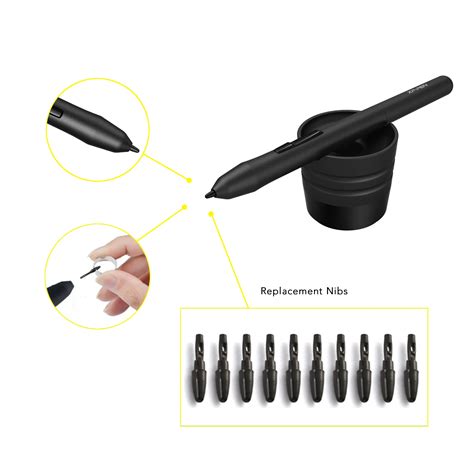
- Stylus Nib: The nib of the stylus is the part that makes contact with the tablet. If the nib is worn down, bent, or broken, it can affect its ability to register properly. XP-Pen tablets usually come with replacement nibs. Inspect the current nib and replace it if it shows signs of wear or damage. The process of replacing a nib is typically straightforward, often involving a nib removal tool or simply unscrewing the old nib.
Firmware Updates:While less frequent, some XP-Pen devices may have firmware that can be updated. Check the XP-Pen support website for any firmware updates applicable to your specific tablet model. Firmware updates are usually more involved than driver updates and should be followed precisely according to the manufacturer's instructions.
Understanding Cookie and Tracking Data (Indirect Relevance):While not directly related to stylus functionality, understanding how websites use cookies and tracking data can sometimes provide context for software behavior. For instance, the mention of "Analytics" and "Advertising Cookies" from Google, or "Doubleclick (Google)" domains, relates to how websites track user interactions. While these cookies are designed for website performance and advertising, in rare and complex software conflicts, background processes related to such tracking mechanisms (though highly unlikely to directly impact stylus input) could theoretically be part of a broader system resource contention. The information about "unauthorised access" and "store browser details" highlights the security considerations of online interactions. This is a tangential point, but it underscores the interconnectedness of software components. The "Google Analytics customisation cookie" and "personalized Google advertising" are examples of how data is used for tailored user experiences, which is a principle mirrored in how graphics tablet software aims to provide a customized drawing experience. The unique identifiers mentioned in relation to Google services are similar in concept to how devices are identified by the operating system.
Contacting Support
If you have exhausted all the above troubleshooting steps and your XP-Pen stylus still isn't working, it's time to reach out to XP-Pen customer support.
- Gather Information: Before contacting them, have your tablet model number, serial number, operating system version, and a detailed description of the problem and the steps you've already taken ready. This will help them diagnose the issue more efficiently.
- Warranty: Check if your XP-Pen product is still under warranty. If it is, they may be able to repair or replace the faulty hardware.
By systematically working through these troubleshooting steps, you can effectively diagnose and resolve most issues preventing your XP-Pen stylus from functioning correctly.